Learning Center

Getting Started With COMSOL Multiphysics®
Press O for more options
Video Thumbnail
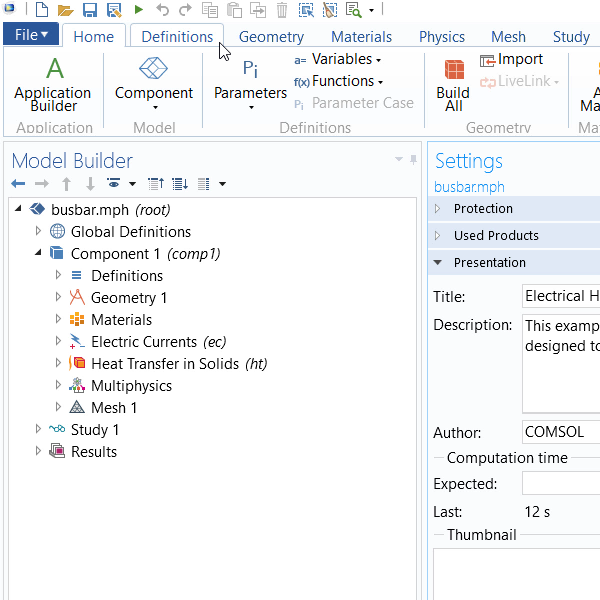
COMSOL Multiphysics provides a comprehensive workflow for setting up and running simulations, which includes model setup, solving, post-processing, and app creation. The modeling workflow begins with setting up the model environment by adding necessary components and building geometry using built-in CAD tools or importing designs from external CAD software. Definitions are created using parameters, selections, and variables to streamline the model-building process. Materials are specified by assigning material properties to model geometry, using built-in materials or creating custom ones. Physics is defined by specifying physical boundary conditions and constraints, and a mesh is created using physics or user-defined settings. Simulations are run using various studies specific to different types of physics and analyses, and results are post-processed by creating and enhancing plots. Optionally, the finite element model can be packaged into a simulation app for personal use or distribution. The software's user interface supports this workflow with features like the Model Wizard, which guides users through model setup, and the Model Builder window, which houses the model tree and node settings. The interface includes a ribbon with shortcut buttons for each modeling step and a settings window that displays corresponding settings for selected model tree branches. The software supports multiple operating systems, with a ribbon native to Windows and a toolbar for Linux and Mac. Users can create geometry using COMSOL Multiphysics drawing tools, import from external files, or synchronize with CAD programs via LiveLink products. The software offers flexibility in creating definitions, allowing them to be added at any stage of the modeling process. Material properties are assigned through the Materials tab, where users can add, customize, and create materials. The software includes several built-in materials, and users can assign materials to different geometry sections. The software indicates required material properties based on the physics included in the model, guiding users through necessary changes. Physics is defined by assigning mathematical equations to geometry parts, with default nodes included for each physics interface. Users can add boundary conditions and constraints as needed, and the software provides transparency by displaying the equations being solved. The multiphysics node contains all couplings, directing information between physics interfaces. Mesh creation is facilitated by the Mesh ribbon tab, with options for physics-controlled or user-controlled mesh. The physics-controlled mesh adapts to physics settings, while the user-controlled mesh allows manual control over mesh size and element types. COMSOL Multiphysics offers various mesh generators, including free tetrahedral, swept, boundary, and boundary layer meshes. After creating the mesh, users run simulations and post-process results, with the software generating default plots based on selected physics. Users can modify existing plots, create new ones, and use arbitrary expressions to visualize any quantity in their solution. Finally, users can package their model into a simulation app using the Application Builder, accessible through the home or developer ribbon tabs. The New Form Wizard allows users to select parameters, graphics, and buttons for the app, which can be customized in the Form Editor. Simulation apps enable users to experiment with parameter values and observe their effects on the model. COMSOL Multiphysics provides extensive resources for learning and self-training, including application libraries with step-by-step instructions and additional models available online. The software's consistent workflow across different physics types is a key strength, allowing users to apply their knowledge to various simulations.

Introduction / The Modeling Workflow

Learn how to set up and run a simulation. Duration: 46:18

This tutorial video provides you with an in-depth introduction to setting up and running a finite element model in COMSOL Multiphysics®. This is done through completing a sequence of steps, which we refer to as the modeling workflow. This streamlined modeling workflow is described in great detail as we show you how to develop and execute a multiphysics simulation from start to finish.

Follow along with this tutorial to see how to navigate the user interface, interact with the modeling environment, and guide you through the entire model building process.

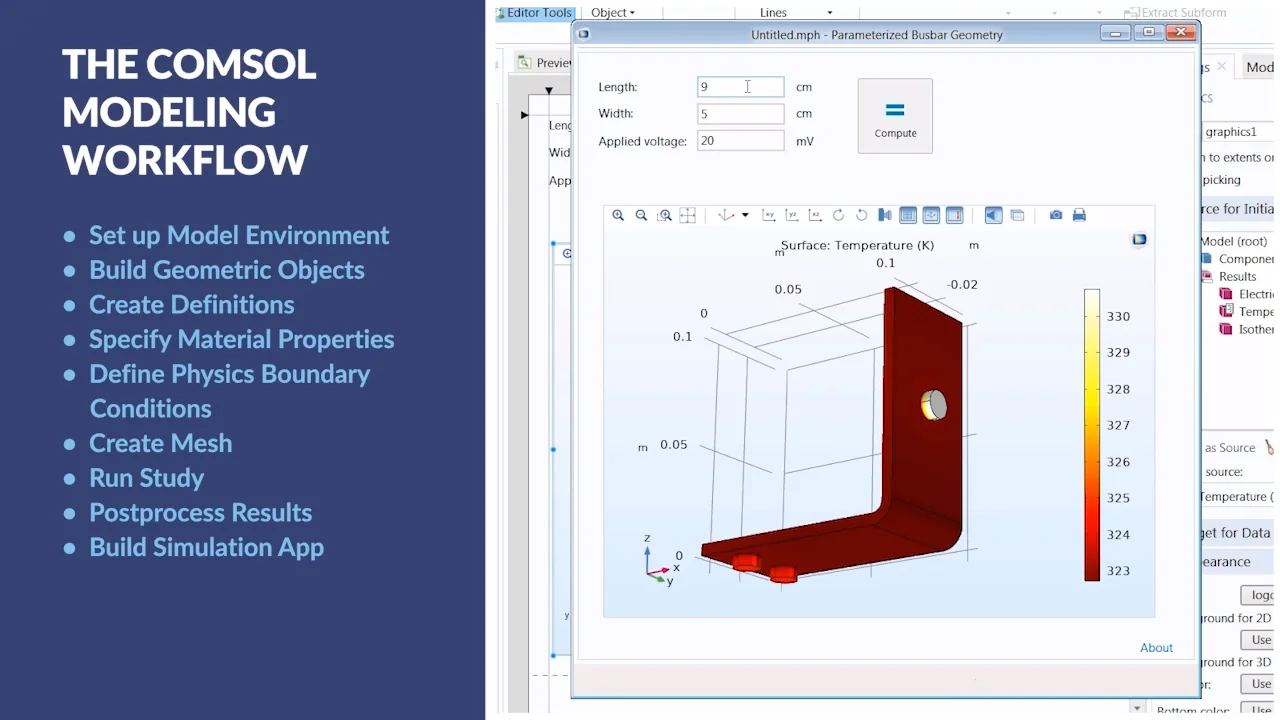
The modeling workflow consists of the following steps:

  • Setting up the model environment
  • Building the geometry
  • Specifying material properties
  • Defining physics boundary conditions
  • Creating the mesh
  • Running the simulation
  • Postprocessing the results

You will also learn how to use the Application Builder, which allows you to transform a finite element model into an easy-to-use simulation application.

To demonstrate the use of the modeling workflow, we simulate the Joule heating of a busbar. The busbar is made of copper and contains bolts made of titanium. An electric potential is applied to the single bolt on one end. A pair of bolts on the other end of the busbar are grounded, thus establishing an electrical potential difference. The temperature in the busbar rises due to resistive heating. In this model, we will couple two physics, namely electrical currents and heat conduction.