
How to Install COMSOL Multiphysics®
The guide below features quick setup instructions for installing COMSOL Multiphysics® on Windows®, with notes when the process differs for macOS and Linux® operating systems. Descriptions of optional settings available in the COMSOL installer are included as well. Installing COMSOL Multiphysics® following these instructions requires a license for the software.
Note: Upgrading to a new version of COMSOL Multiphysics® is the same process as a new installation, which is shown in this article. New versions of COMSOL Multiphysics® can be installed without impacting existing installations.
Quick Setup for COMSOL Multiphysics
In order to ensure a smooth installation, there are a few steps to complete in preparation. You will need to:
- Gather your license information
- Add your license(s) to your COMSOL Access account
- Download the COMSOL installer
If you have already completed these steps and are ready to run the installer, you can skip directly to the installation video guide below.
Step 1. Gathering License Information
The first step to installing COMSOL Multiphysics® is verifying you have your license information. When you purchase a license, you will receive it in the form of a .dat file as an attachment from an @comsol.com email address. You must upload this active .dat license file to your COMSOL Access account before you can download the installer. (License files and the information about them are emailed to the contact that COMSOL has listed in its system; you may need to contact the person responsible for your organization's license files in order to download the installer.)
If you have a license subscription, you will receive emails from a COMSOL email address based out of your local office when new versions are released, which will allow you to install the most current version of COMSOL Multiphysics®.
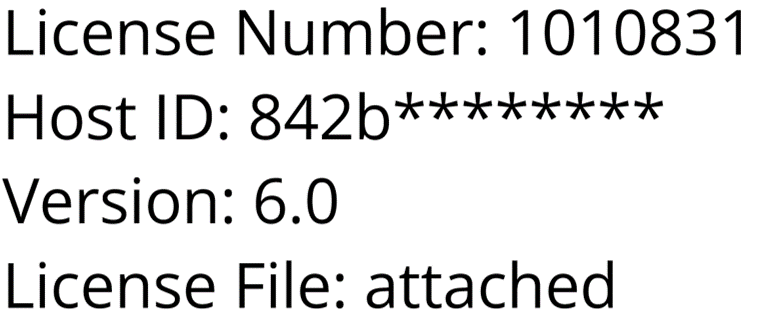 Three screenshots of example messaging from COMSOL license distribution emails that include license number, host ID, version, and license file attachment information. (1/3)
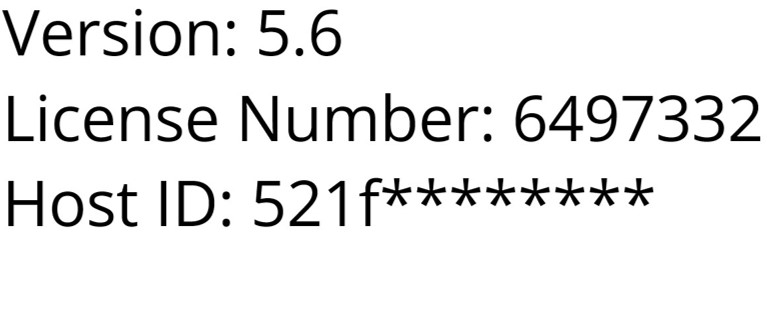 Three screenshots of example messaging from COMSOL license distribution emails that include license number, host ID, version, and license file attachment information. (2/3)
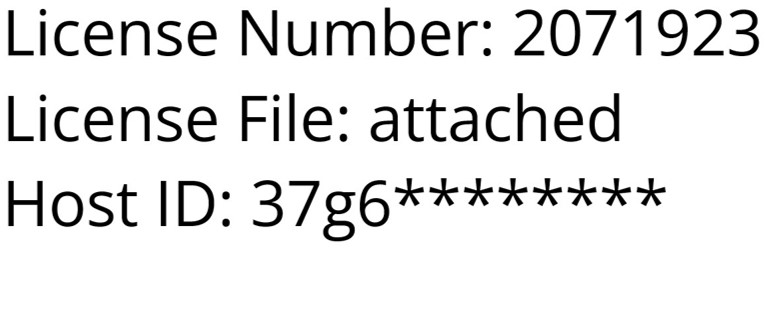 Three screenshots of example messaging from COMSOL license distribution emails that include license number, host ID, version, and license file attachment information. (3/3)
If you have network licenses, you may need to complete extra steps. The COMSOL License Manager must be installed and running in your network for Floating Network Licenses (FNL), Class Kit Licenses (CKL), installations on Linux®, and installations in some regions of the world. You may refer to How to Install the COMSOL License Manager or contact your local administrator for assistance. You can also contact COMSOL Support for any further help you may need.
Step 2. Adding Your License(s) to Your COMSOL Access Account
COMSOL Access is an online service for current users and those interested in acquiring COMSOL Multiphysics®. Among its other benefits, a COMSOL Access account enables you to manage your license information and download the COMSOL installer. If you don't have a COMSOL Access account yet, you will need to create and activate one in order to download the installer.
To add your license information or trial passcode to your COMSOL Access account:
- Go to comsol.com/access. Log into your existing account or create a new one.
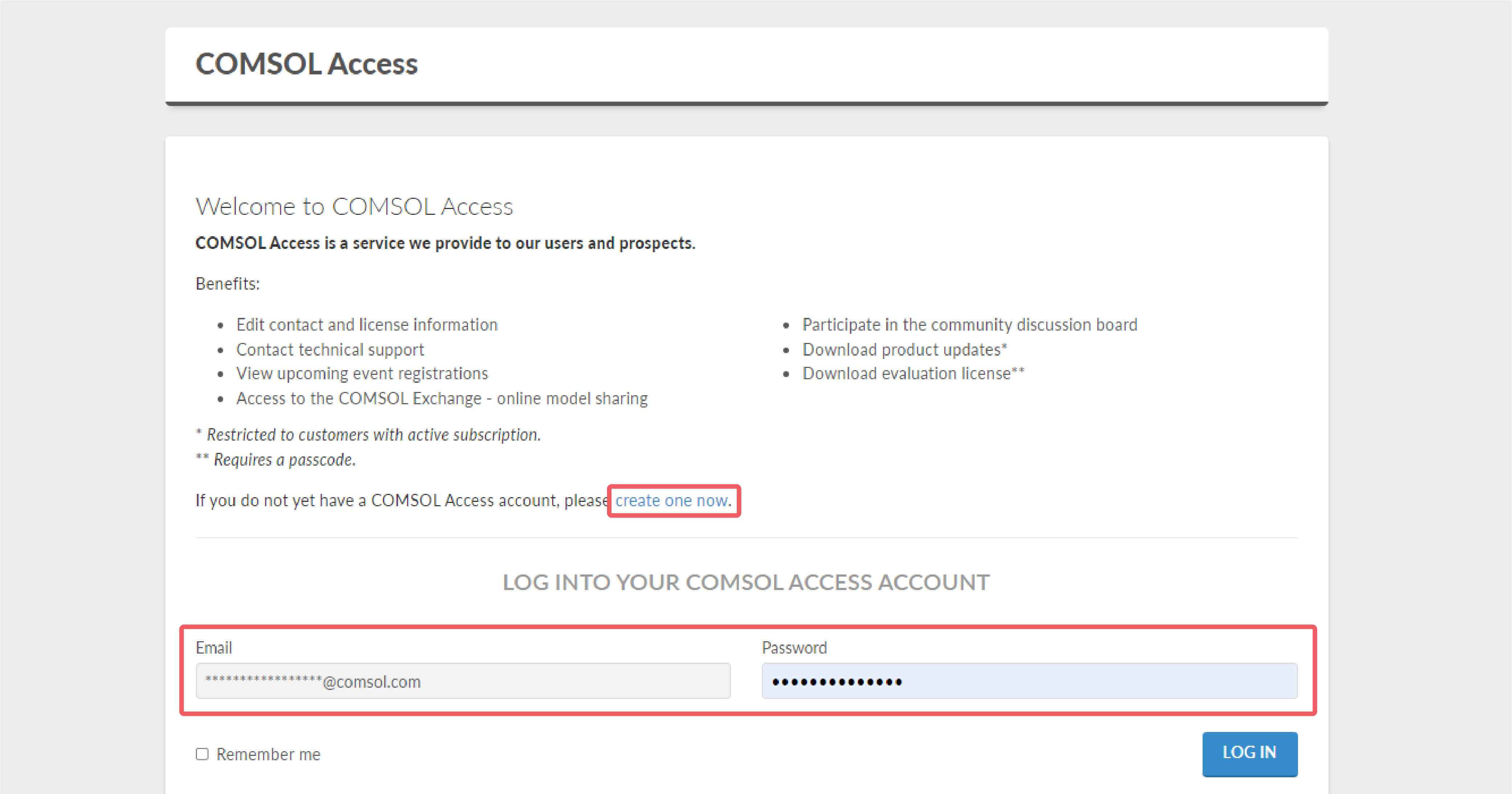 A UI screenshot of the COMSOL Access login page on comsol.com shows the options to log in or create a new account.
The COMSOL Access login page on the COMSOL website, where you can log into or create a COMSOL Access account.
A UI screenshot of the COMSOL Access login page on comsol.com shows the options to log in or create a new account.
The COMSOL Access login page on the COMSOL website, where you can log into or create a COMSOL Access account.
- After you log in, click Manage License to go to the Manage Licenses page.
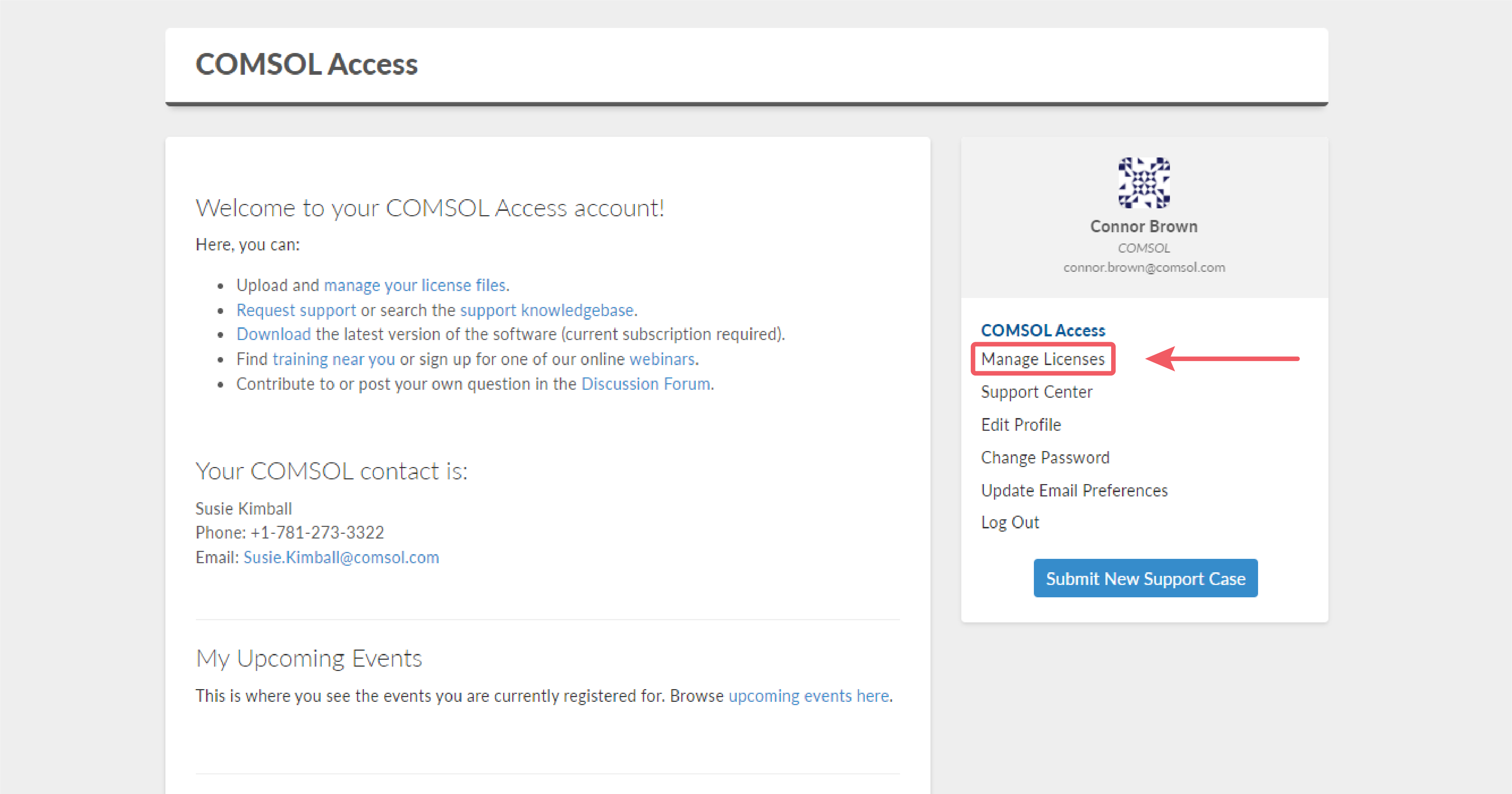 A UI screenshot showing the Manage Licenses link on the main page of a COMSOL Access account.
The COMSOL Access main page, where you will land once you have logged in.
A UI screenshot showing the Manage Licenses link on the main page of a COMSOL Access account.
The COMSOL Access main page, where you will land once you have logged in.
- Click Add License and upload your license file or enter your trial passcode to enable the COMSOL installer to be downloaded.
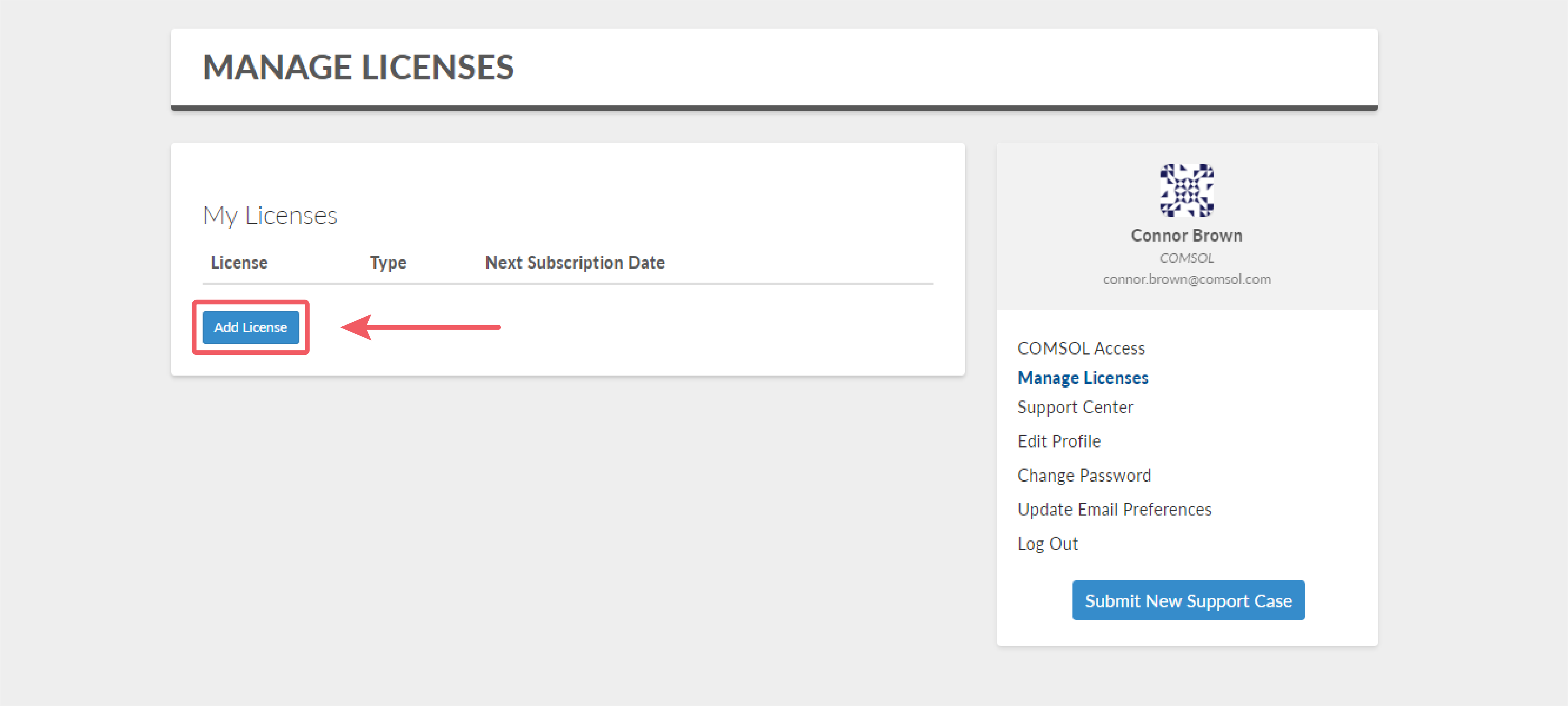 In a UI screenshot of the Manage Licenses page, the Add License button is highlighted in red and pointed out with an arrow.
Add or manage your licenses on the Manage Licenses page.
In a UI screenshot of the Manage Licenses page, the Add License button is highlighted in red and pointed out with an arrow.
Add or manage your licenses on the Manage Licenses page.
Step 3. Download the Installer
Once you have added your license or licenses to COMSOL Access, navigate to Product Download. Click the download button for your operating system: Windows®, Linux®, macOS Intel®, or macOS Apple Silicon. If you have a Mac, select the installer that matches your CPU.
 In a UI screenshot of comsol.com/product-download, the download button for Windows and links to download the installer for Linux, macOS Intel, and macOS Apple Silicon are shown.
The download page showing the download buttons for Windows®, Linux®, macOS Intel®, and macOS Apple Silicon.
In a UI screenshot of comsol.com/product-download, the download button for Windows and links to download the installer for Linux, macOS Intel, and macOS Apple Silicon are shown.
The download page showing the download buttons for Windows®, Linux®, macOS Intel®, and macOS Apple Silicon.
Step 4. Video: Running the Installer
Once you have downloaded the installer, you can follow along with this video to install COMSOL Multiphysics® with the default settings. The video also includes a brief description of the options for configuring the installation to your preferences. These options are explained in more detail below.
- Information on each page of the installer is available here.
- We recommend the full COMSOL Multiphysics® Installation Guide for more extensive information.
- For help with installation, contact your local administrator or COMSOL representative COMSOL Support.
Getting Started with COMSOL Multiphysics®
When you finish installing COMSOL Multiphysics®, the Learning Center offers a variety of resources to support your needs at any stage. We recommend the following resources to help you get started:

Getting Started with COMSOL Multiphysics®
Learn how to get started with COMSOL Multiphysics® through a series of self-guided tutorial videos and supplementary content.


How to Navigate the COMSOL Multiphysics® User Interface
Learn how to use the user interface in COMSOL Multiphysics® in this 8-part, self-guided course.
Submit feedback about this page or contact support here.


