
How to Upgrade COMSOL Multiphysics® with an FNL
This guide explains how to upgrade to a new major version of COMSOL Multiphysics® using a Floating Network License (FNL) or a Class Kit License (CKL), which uses the same process. Upgrading with an FNL is the same as a fresh installation of COMSOL Multiphysics® and the license manager, but the existing license manager must be stopped before the new license manager can be installed.
If you need to update your current installation, rather than upgrade to a new major version, see "How to Update Your Current Version of COMSOL Multiphysics®".
FNL Upgrade Steps
Upgrading with an FNL typically entails stopping the existing license manager on the license server and installing the new version so that it is remotely accessible to all installations within the network. Then, on the client machines, the new version of COMSOL Multiphysics® can be installed and function alongside older versions due to the backward compatibility of the license manager.
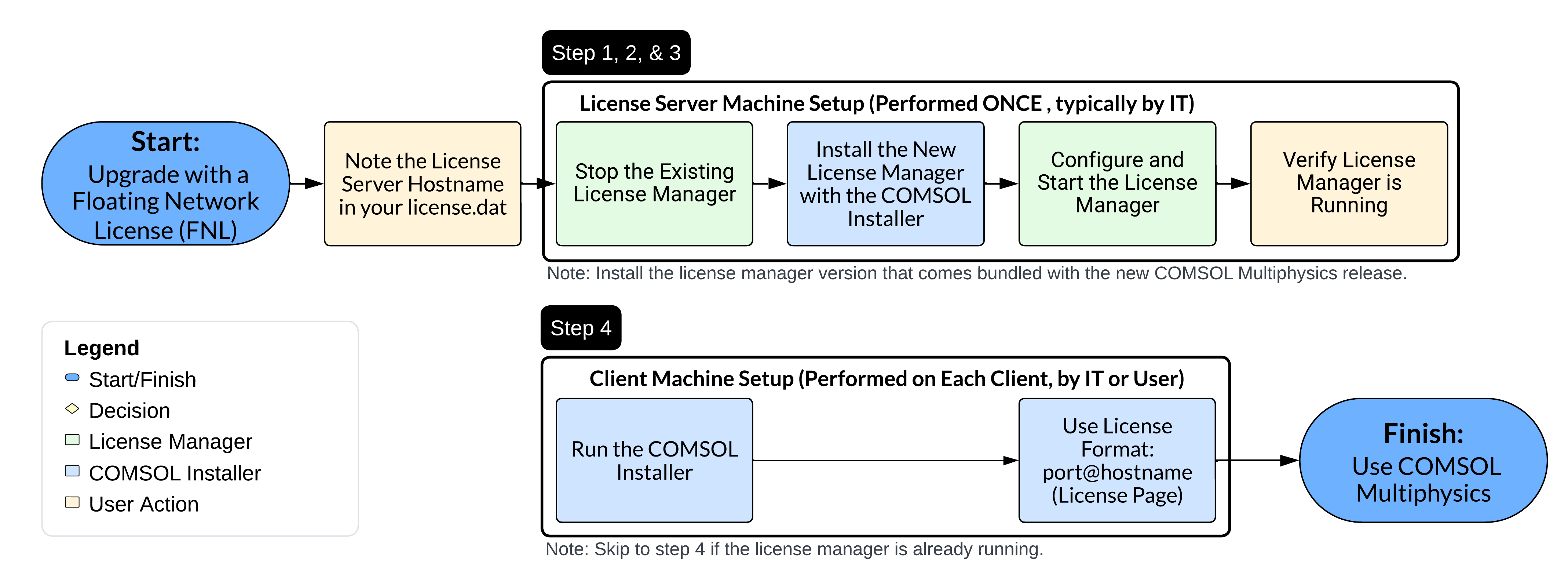 A colored flowchart of the steps required to upgrade COMSOL Multiphysics with an FNL.
A visualization of the process to upgrade COMSOL Multiphysics® with a Floating Network License (FNL), where the license manager needs to be updated on the license server before client machines can use the new version.
A colored flowchart of the steps required to upgrade COMSOL Multiphysics with an FNL.
A visualization of the process to upgrade COMSOL Multiphysics® with a Floating Network License (FNL), where the license manager needs to be updated on the license server before client machines can use the new version.
Prepare to Upgrade COMSOL Multiphysics®
Before proceeding to the following parts, confirm you have the latest license file (license.dat), which is sent via email to the designated contact in your organization when a new version is released. If you do not have access to this file, reach out to the person who received the email and ask for the latest license.dat file. Then check the system requirements to confirm which version of the FlexNet® license manager is required for your version of COMSOL Multiphysics®.
License Server Machine - License Manager Upgrade
- Stop the existing license manager on the license server machine
- Install the new license manager on the license server machine
- Start the license manager on the license server machine
See "Updating the COMSOL License Manager" for more details.
Client Machine - Upgrade COMSOL Multiphysics®
- Install COMSOL Multiphysics® on client machines in the network
Once the license manager is running on the license server, refer to "How to Install COMSOL Multiphysics®" for complete instructions.
Submit feedback about this page or contact support here.