Learning Center
Getting Started With COMSOL Multiphysics®
Press O for more options
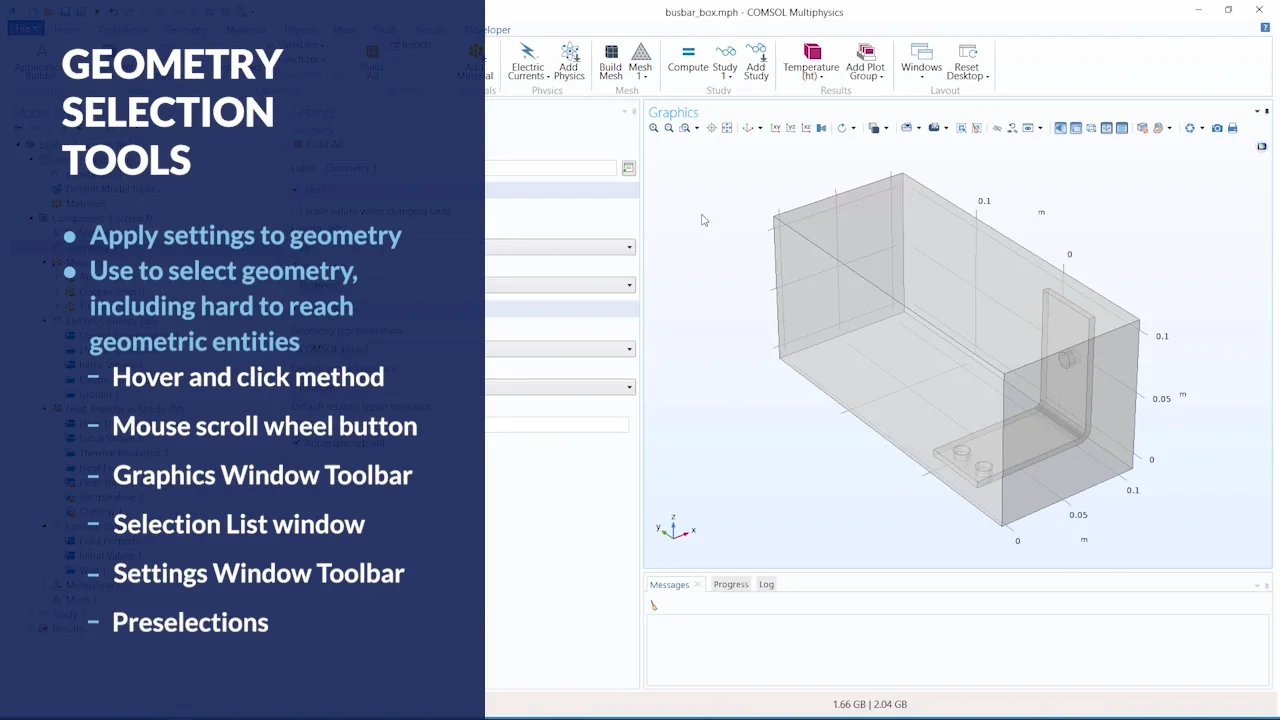
Selecting geometric entities in COMSOL Multiphysics is a crucial step in setting up simulations, as it involves assigning materials, defining boundary conditions, refining meshes, and post-processing results. The software offers multiple methods to facilitate this process, especially when dealing with large or complex geometries. Users can select geometry using the mouse in the graphics window, the mouse scroll wheel, the graphics window toolbar, the selection list window, the settings window toolbar, and pre-selections.
The hover and click method is the standard approach for selecting simple geometries or single entities. Users hover over the desired part of the geometry in the graphics window, which turns red to indicate selection, and click to confirm, changing the color to blue. For selecting hard-to-reach entities or interior boundaries, the mouse scroll wheel is effective. By hovering over the geometry and scrolling, users can toggle through overlapping entities to make their selection. The up and down arrows on a keyboard or a two-finger drag on a touchpad can also be used for this purpose.
For selecting multiple entities quickly, the graphics window toolbar offers selection buttons. The select box allows users to draw a box around entities to select them, while the deselect box removes unwanted selections. The select all and clear selection buttons provide additional control over the selection process. The selection list window is particularly useful for complex geometries or when the geometric entity numbers are known. Users can toggle through entity numbers to highlight and select the desired geometry.
The settings window toolbar enables users to copy and paste lists of selected entities from one node to another, streamlining the process when multiple selections are involved. This method is beneficial when following step-by-step instructions from the application library. Pre-selections are useful for applying physics settings through the ribbon tabs or when adding a physics interface to selected geometric entities. Users can toggle off the active button in the settings window, select the desired geometry in the graphics window, and apply the settings, which are automatically assigned to the selected entities.
These methods provide flexibility and efficiency in selecting geometric entities within COMSOL Multiphysics, accommodating various model complexities and user preferences. For further information on these techniques and related topics, additional resources are available through provided links.
User Interface / Selecting Geometry
Select hard-to-reach geometric entities. Duration: 10:41When setting up a simulation, there are many instances in which you will need to select geometric entities, such as domains or boundaries, in your model. The COMSOL Multiphysics® software contains many functionalities for selecting geometric entities in your model that make working with complex geometries or reaching interior domains and boundaries easy.
This video explains each method and its advantages in different scenarios, including using:
- The mouse in the Graphics window to select simple geometries or individual entities
- The mouse scroll-wheel button to reach interior geometric entities
- The Graphics window toolbar to select multiple entities quickly
- The Selection List window to use for complex geometries
- The Settings window toolbar to copy and paste lists of geometric entities from one node's settings to another
- Preselections to add physics nodes from the ribbon
Exercise Files
busbar_box.mph
Download
Video Playlist
User Interface
Videos: 5
-
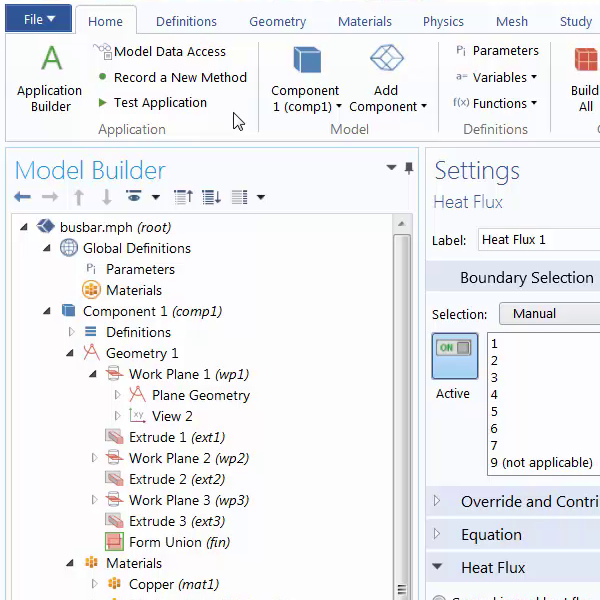
COMSOL Desktop®
Navigate the software's user interface.
-
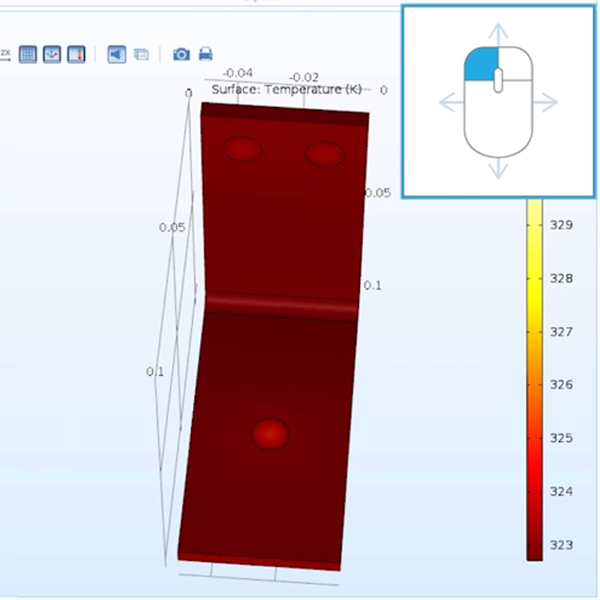
Graphics Window
Customize the view of your geometry and results.
-
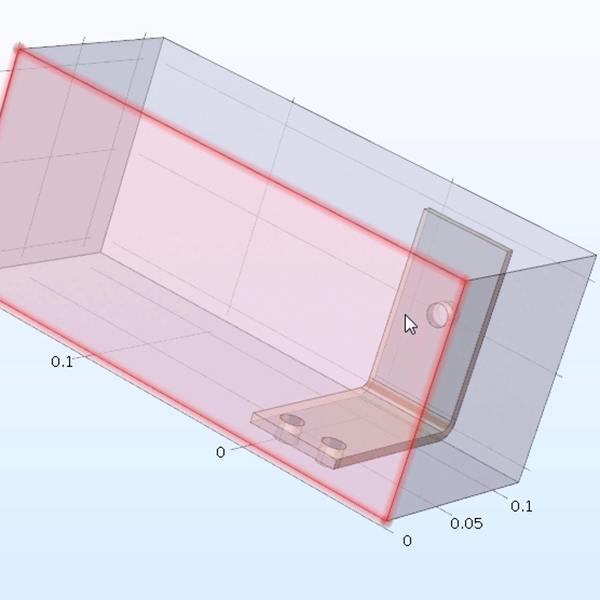
Selecting Geometry
Select hard-to-reach geometric entities.
-
Software Help Tools
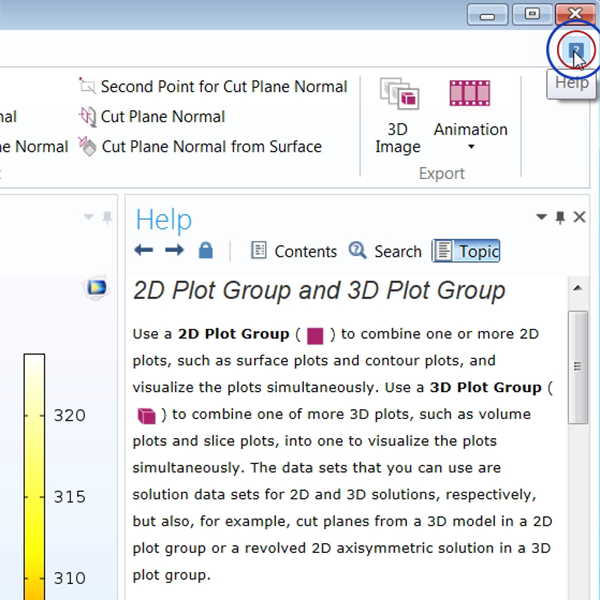
Use the help tools and resources in the software.
-
Web Help Resources
Software and model help on the COMSOL website.
-
Introduction
-
User Interface
-
Geometry
-
Definitions
-
Materials
-
Physics
-
Mesh
-
Study
-
Results
-
Application Builder