Learning Center
Getting Started With COMSOL Multiphysics®
Press O for more options
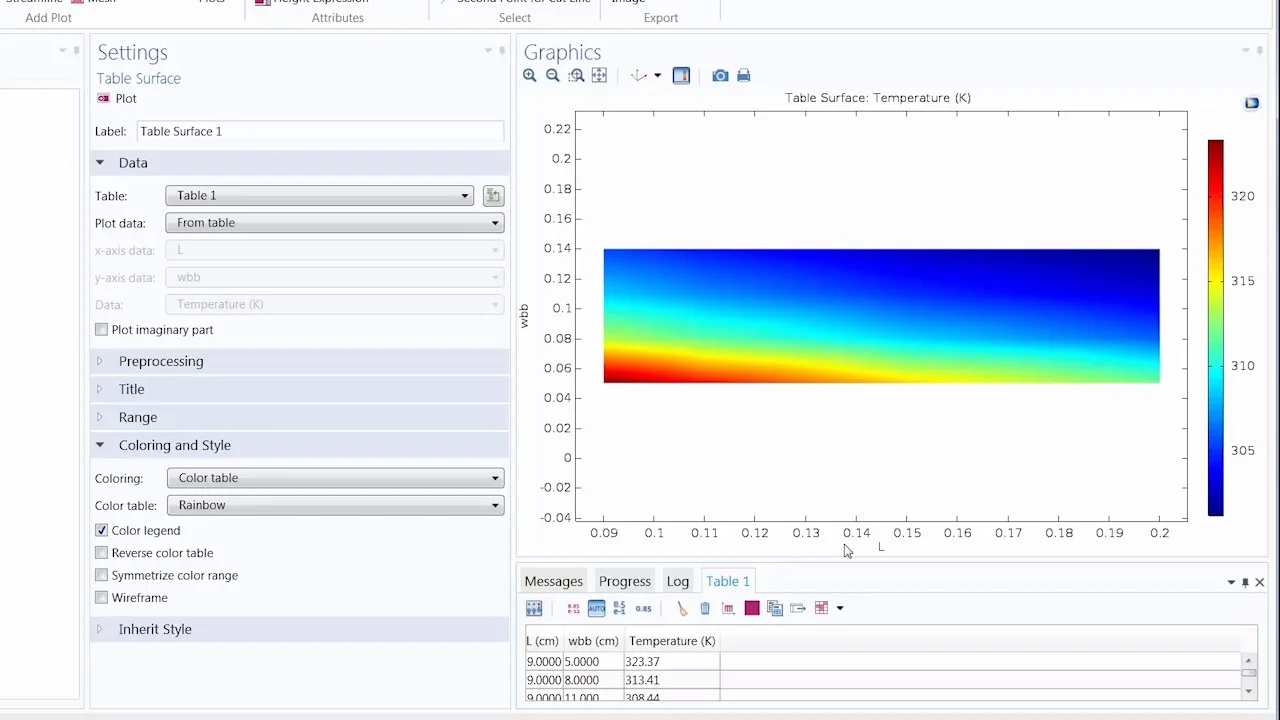
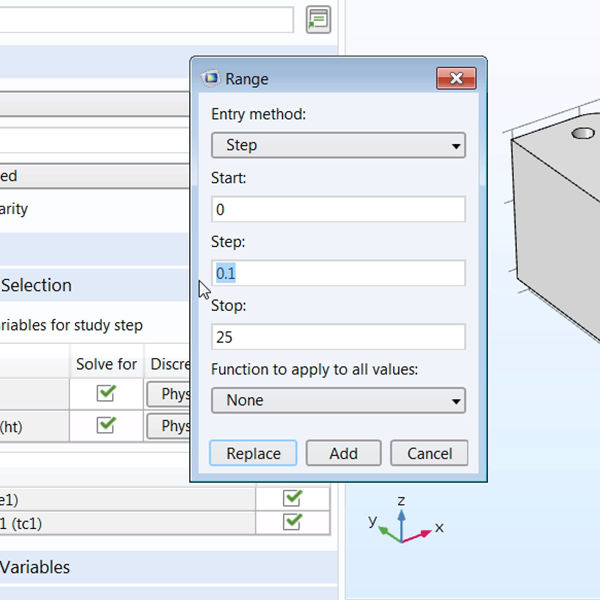
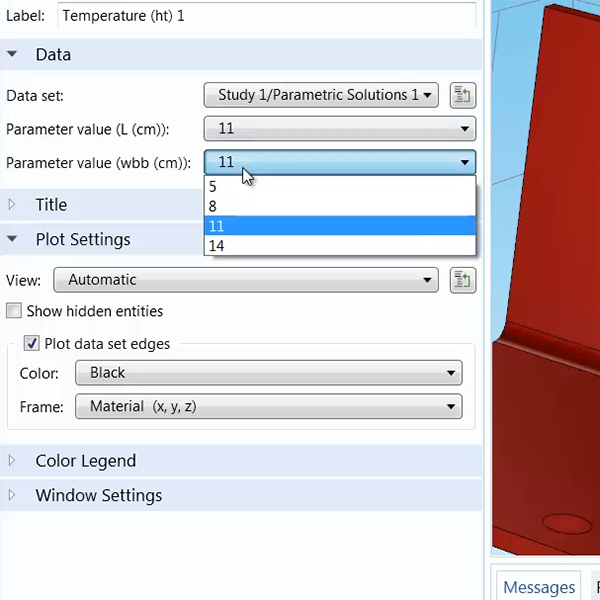
Postprocessing results from a parametric sweep in COMSOL Multiphysics involves several steps to effectively analyze and visualize data. After running a parametric study on the busbar model, which examines different values of length and width, users can tabulate the results by accessing the "Results" tab and selecting "More Derived Values." Choosing "Volume Maximum" allows examination of the highest quantity values across the model geometry. Adjusting the data set to reflect the parametric study enables the inclusion of all parameter values, though users can opt to display only specific values.
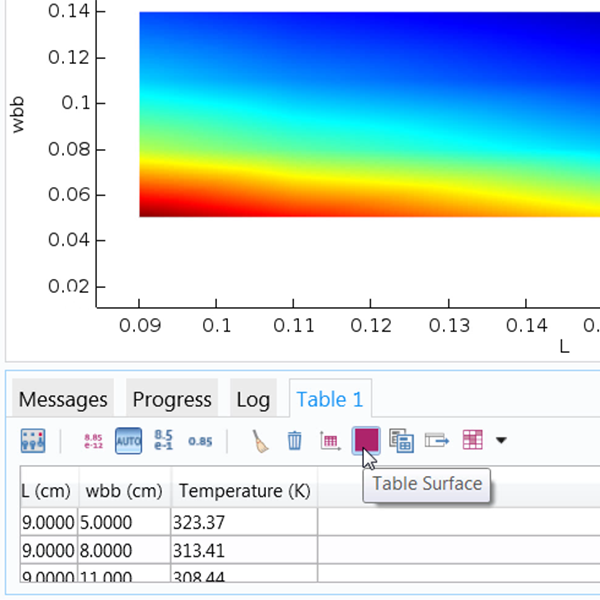
For the busbar geometry, users can focus on temperature by selecting the appropriate expression under "Heat Transfer in Solids." Evaluating this setup generates a table in the Messages Progress Log window, displaying 16 combinations of parameter values with corresponding maximum temperature values. This data can be visualized graphically using a table surface plot, where the length and width are represented on horizontal and vertical axes, respectively, with a color legend indicating temperature values. Users can refine the data range by selecting "Manual Data Range" to focus on specific temperature ranges of interest.
Additionally, users can create tables evaluating multiple quantities by changing the geometry to include the bolts within the busbar and again assessing maximum temperature. Editing the table for better descriptions and labeling involves selecting the table under the "Tables" node and modifying labels and column headers to specify which temperature columns correspond to the busbar and bolts. Once finalized, the table can be exported or copied to the clipboard for use in various file formats. This comprehensive approach to postprocessing results from a parametric sweep facilitates detailed analysis and presentation of simulation data.
Study / Postprocess Sweep Results
Visualize the results from a parametric sweep. Duration: 3:53After running a COMSOL Multiphysics® simulation that yields multiple results, there are specific ways to postprocess the data. Using a simple parametric sweep study, we show you how to tabulate your data and display it in an informative way. Features include the Table Surface plot type, tables, and the ability to export the data to other programs.
This video uses a parametric sweep (created in a previous video, Performing a Parametric Sweep Study in COMSOL Multiphysics®) to detail the ways in which tables can be used in simulations that give multiple results. Applicable simulations include those with auxiliary and parametric sweeps, function and material sweeps, and time-dependent and frequency-domain studies.
-
Introduction
-
User Interface
-
Geometry
-
Definitions
-
Materials
-
Physics
-
Mesh
-
Study
-
Results
-
Application Builder