Learning Center
Getting Started With COMSOL Multiphysics®
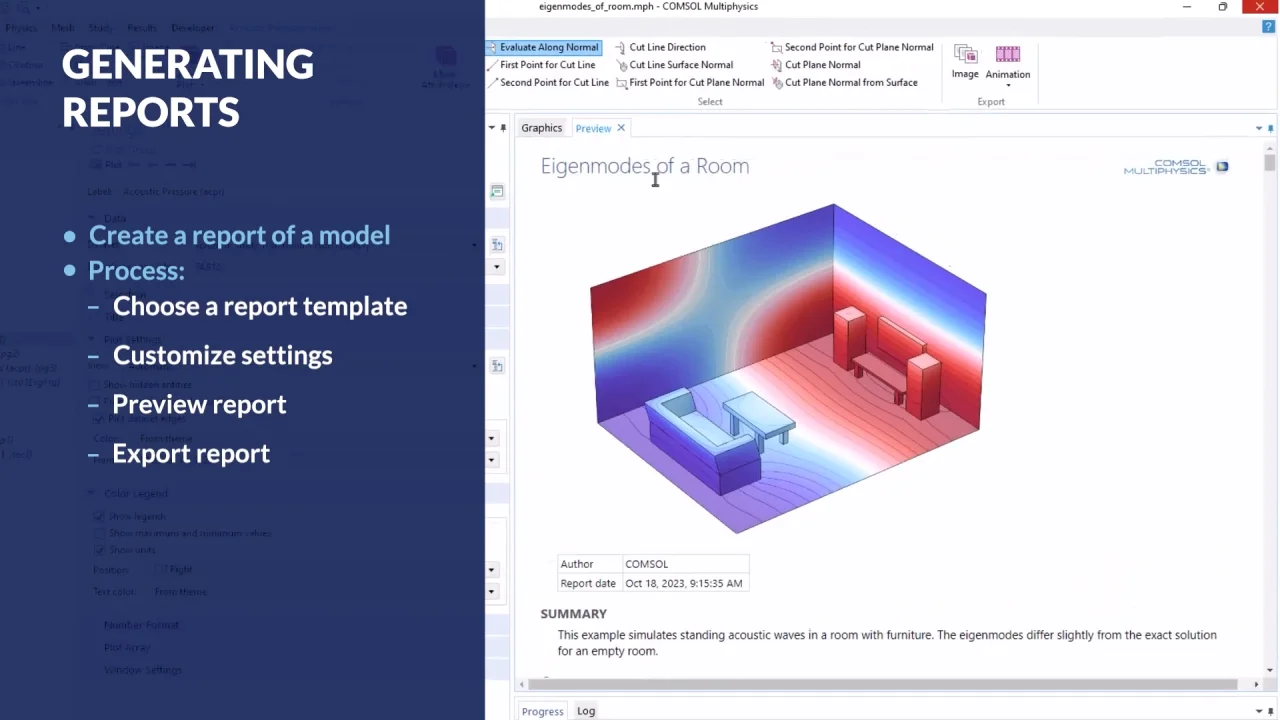
Results / Report Generation
Export reports of your model from the software. Duration: 1:50In the COMSOL Multiphysics® software, you can use the Report Generator to create a comprehensive report of an entire model and this tutorial video demonstrates how.
Your report can include all of the settings that were made during the modeling process, such as model properties; physics settings; studies; and graphics of the geometry, mesh, and results.
Note that you can control how much information is included in a report by using the Brief Report, Intermediate Report, and Complete Report templates.
When exporting a report, you can choose between two file types: an HTML file, for display in a web browser, or a Microsoft® Word document (.docx file).
Video Playlist
Results
Videos: 7
-
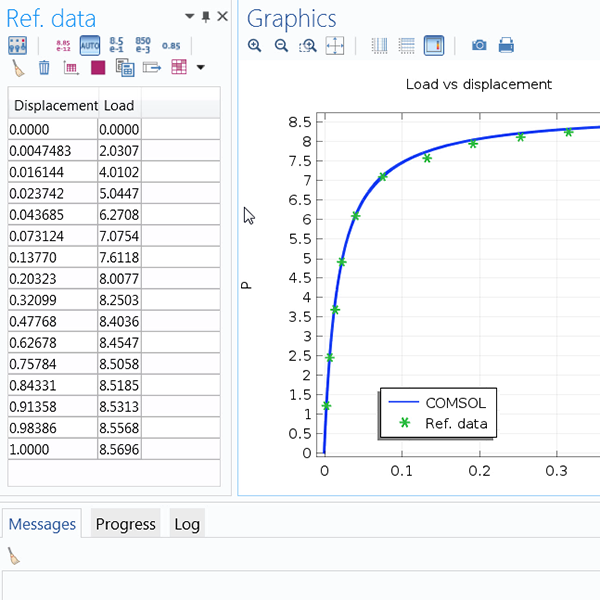
Import Reference Data
Import external data to compare with results.
-
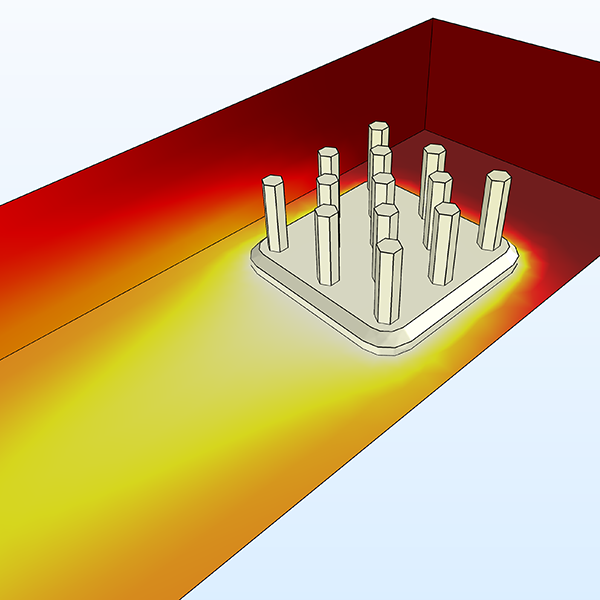
Surface, Volume, Line Plot
Show results on different geometric entity levels.
-
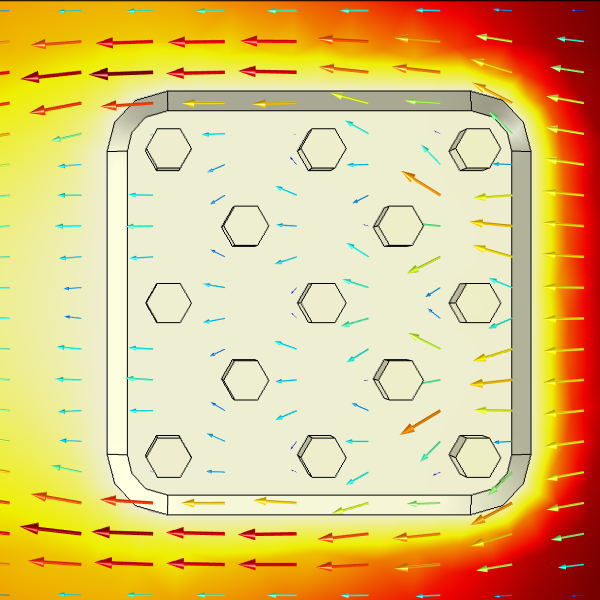
Arrow Plots
Visualize field distributions in your results.
-
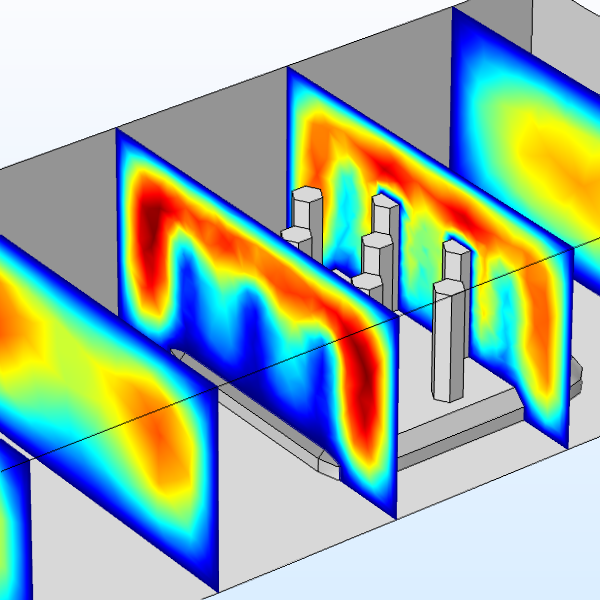
Slice Plots
Display results in cross sections.
-
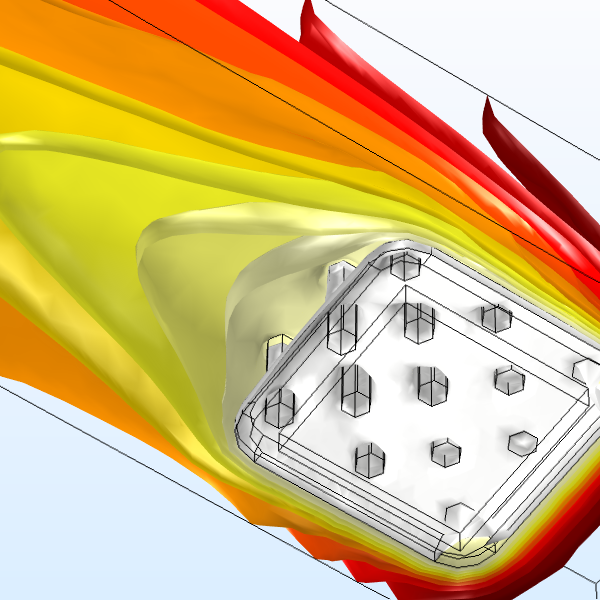
Contours and Isosurfaces
Show results using colored lines or surfaces.
-
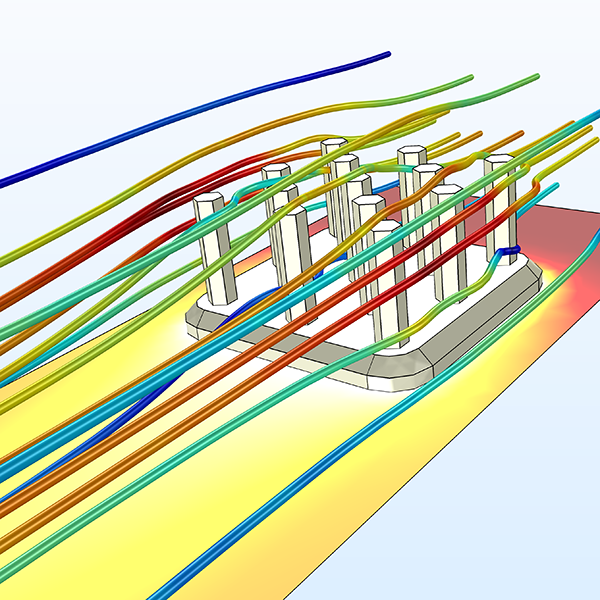
Streamline Plots
Visualize vector quantities in your results.
-
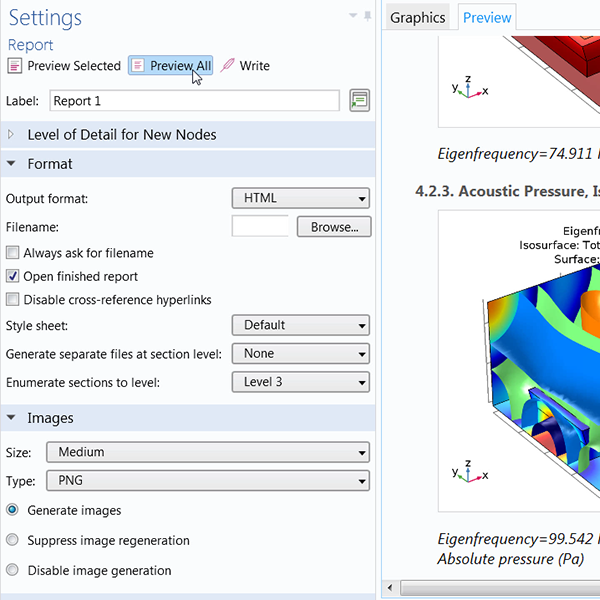
Report Generation
Export reports of your model from the software.
-
Introduction
-
User Interface
-
Geometry
-
Definitions
-
Materials
-
Physics
-
Mesh
-
Study
-
Results
-
Application Builder