Learning Center
Getting Started With COMSOL Multiphysics®
Press O for more options
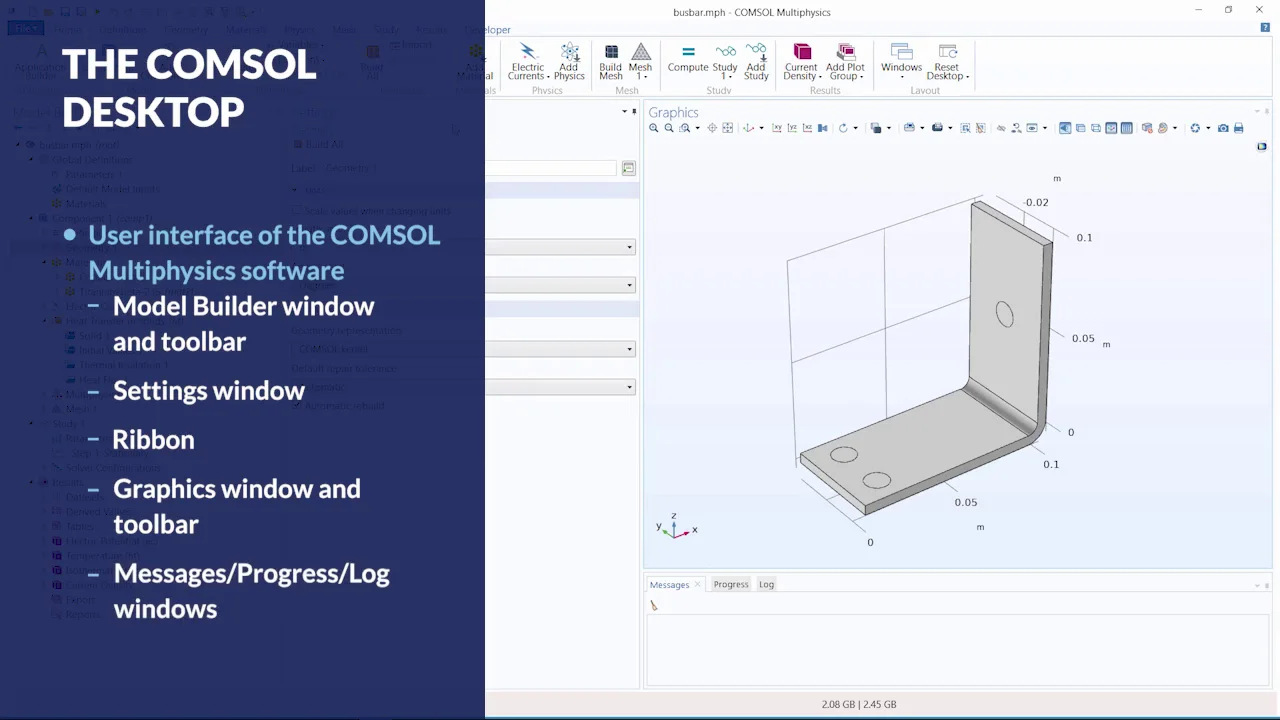
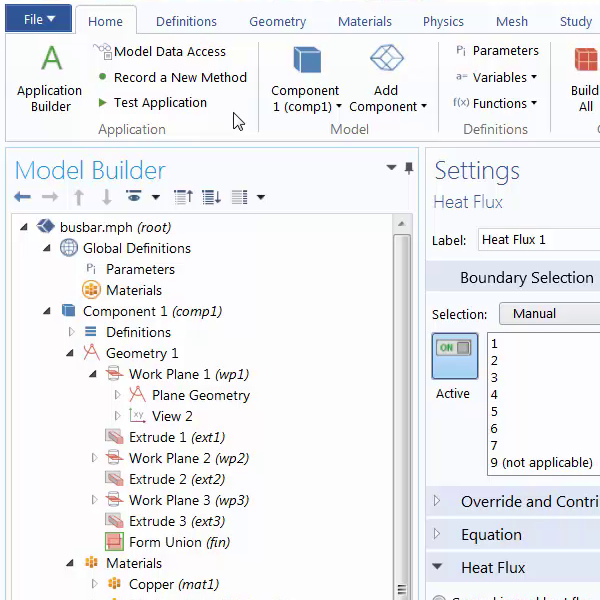
COMSOL Multiphysics provides a comprehensive modeling environment through the COMSOL Desktop, enabling users to create, analyze, and visualize models and applications efficiently. The COMSOL Desktop features a user interface comprising various windows and toolbars designed to facilitate the modeling process. Central to this interface is the Model Builder window, which encompasses all functionalities for building, solving, and displaying model results. The Model Tree offers an overview of the model's data structure and controls the modeling sequence, allowing users to right-click any node to access context-sensitive options such as setting up the model, creating definitions, building geometry, adding materials, defining physics, building the mesh, running simulations, and post-processing results.
The COMSOL Desktop interface includes a ribbon, available exclusively in the Windows version, which organizes commands according to main modeling tasks. This ribbon is replaced by other menus and toolbars in the OSX and Linux versions. Adjacent to the Model Tree, the Settings window displays settings related to the selected node, enabling users to input simulation parameters like geometry creation, material properties, and physics boundary conditions. The Graphics window provides interactive graphics for geometry, mesh, and results, with toolbar buttons that update based on the model's spatial dimension and the selected node. Users can rotate, pan, zoom, and modify the graphics rendering through these controls.
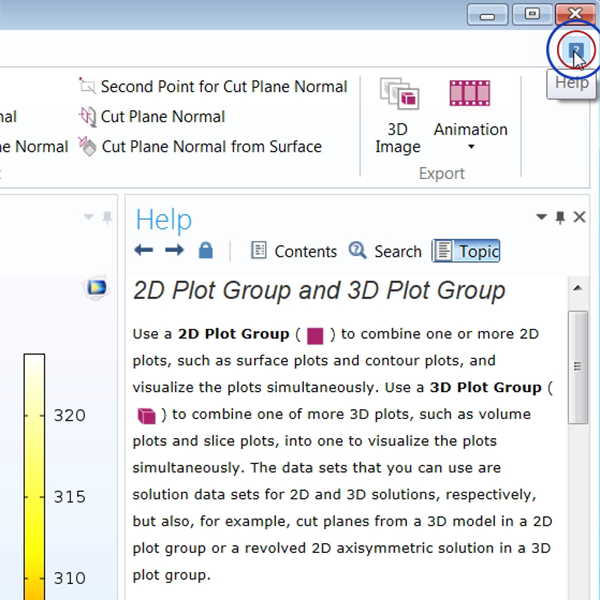
Information windows, such as messages and progress log windows, display critical model information, including warning messages, solution time, solver logs, and results tables. A progress bar on the bottom right indicates the status of ongoing operations, with an adjacent cancel button for terminating processes. The Dynamic Help button, located in the top right corner, opens the Help window, offering context-dependent assistance based on the selected node in the Model Tree. Users can toggle between the Application Editor and COMSOL Multiphysics using the Application Builder button, allowing for the creation and sharing of applications based on models.
Customization of the COMSOL Desktop layout is possible, with options to resize, move, or hide windows. Any layout changes are saved upon closing the session and will appear by default when reopening COMSOL Multiphysics. To revert to default settings, users can employ the Reset Desktop button. This introduction to the COMSOL Desktop covers the various menus, toolbars, and windows available, highlighting the ribbon feature's relationship with the Model Tree and customization options.
User Interface / COMSOL Desktop®
Navigate the software's user interface. Duration: 4:45In the COMSOL Multiphysics® software, the COMSOL Desktop® user interface provides a modeling environment for creating, analyzing, and visualizing multiphysics models and applications. This consists of many tools, menus, and windows, such as the Model Builder window and nodes, ribbon, Settings windows, Graphics windows, Information windows, and other components.
Watch this video to review all of the features of the COMSOL Desktop® and learn how to navigate within the software.
Exercise Files
busbar.mph
Download
Video Playlist
User Interface
Videos: 5
-
COMSOL Desktop®
Navigate the software's user interface.
-
Graphics Window
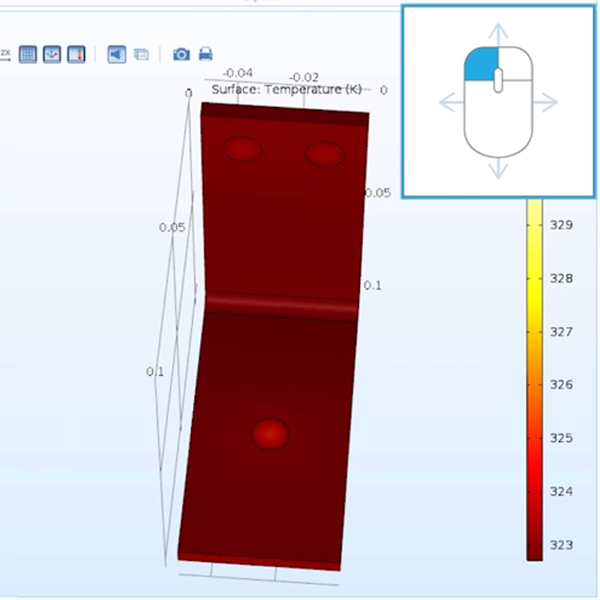
Customize the view of your geometry and results.
-
Selecting Geometry
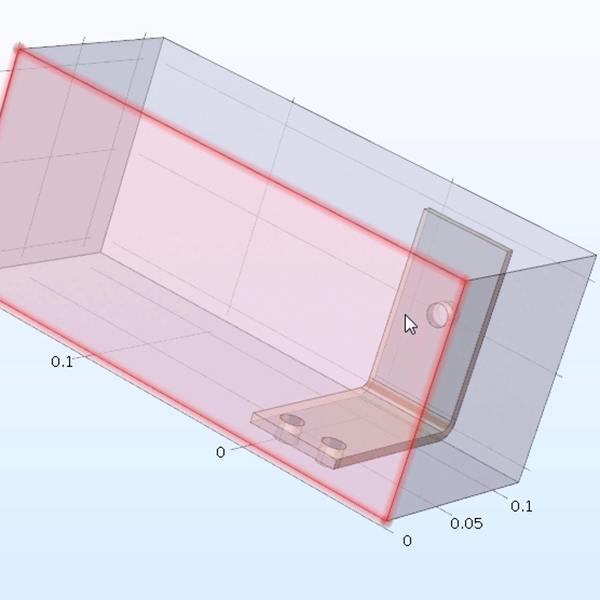
Select hard-to-reach geometric entities.
-
Software Help Tools
Use the help tools and resources in the software.
-
Web Help Resources
Software and model help on the COMSOL website.
-
Introduction
-
User Interface
-
Geometry
-
Definitions
-
Materials
-
Physics
-
Mesh
-
Study
-
Results
-
Application Builder