

Accessibility features can make simulation software easier for all users to view, navigate, and interact with. In line with COMSOL’s mission to make modeling and simulation software more accessible, COMSOL Multiphysics provides options for adjusting the appearance of the user interface, navigating using a keyboard, syntax highlighting that makes parsing and editing expressions easier, and color tables that aid in creating visualizations that optimize perception and interpretation of results.
In this blog post, we’ll look at several features and options in COMSOL Multiphysics that support accessible workflows and alternative ways that users can interact with the software.
Adjusting the Appearance of the COMSOL Desktop
The appearance of the COMSOL Desktop can be adjusted to accommodate different viewing preferences. COMSOL Multiphysics includes default, light, and dark Color Themes, which change the appearance of the user interface.
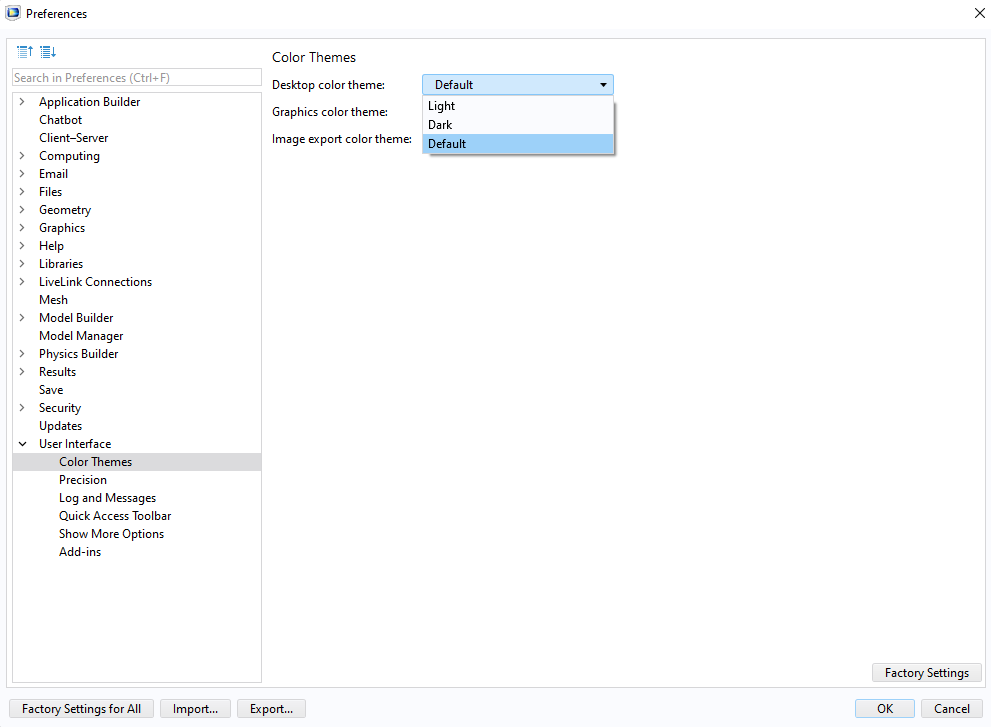 The Default, Light, and Dark themes available for the COMSOL Desktop, shown in the Preferences window.
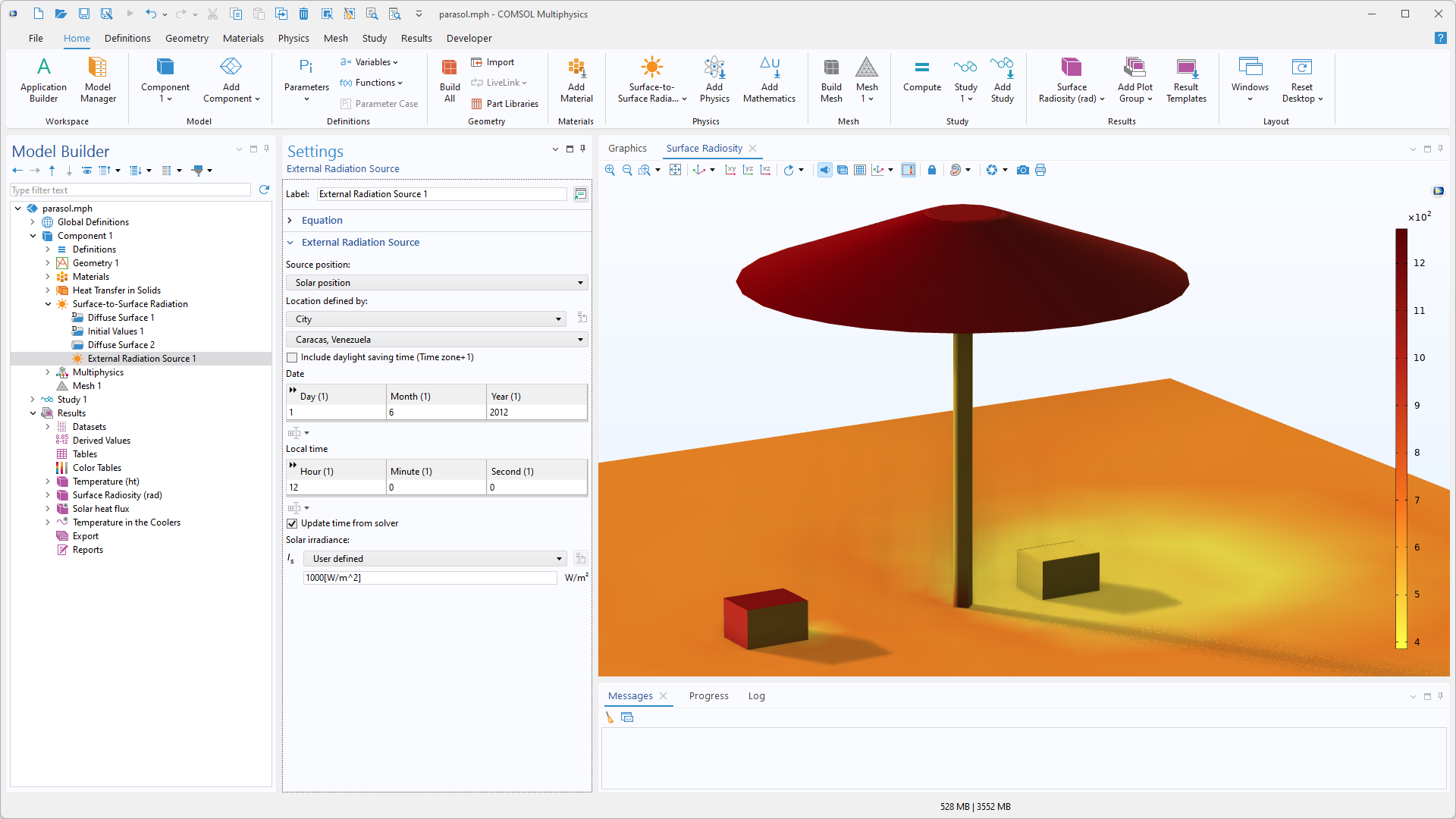
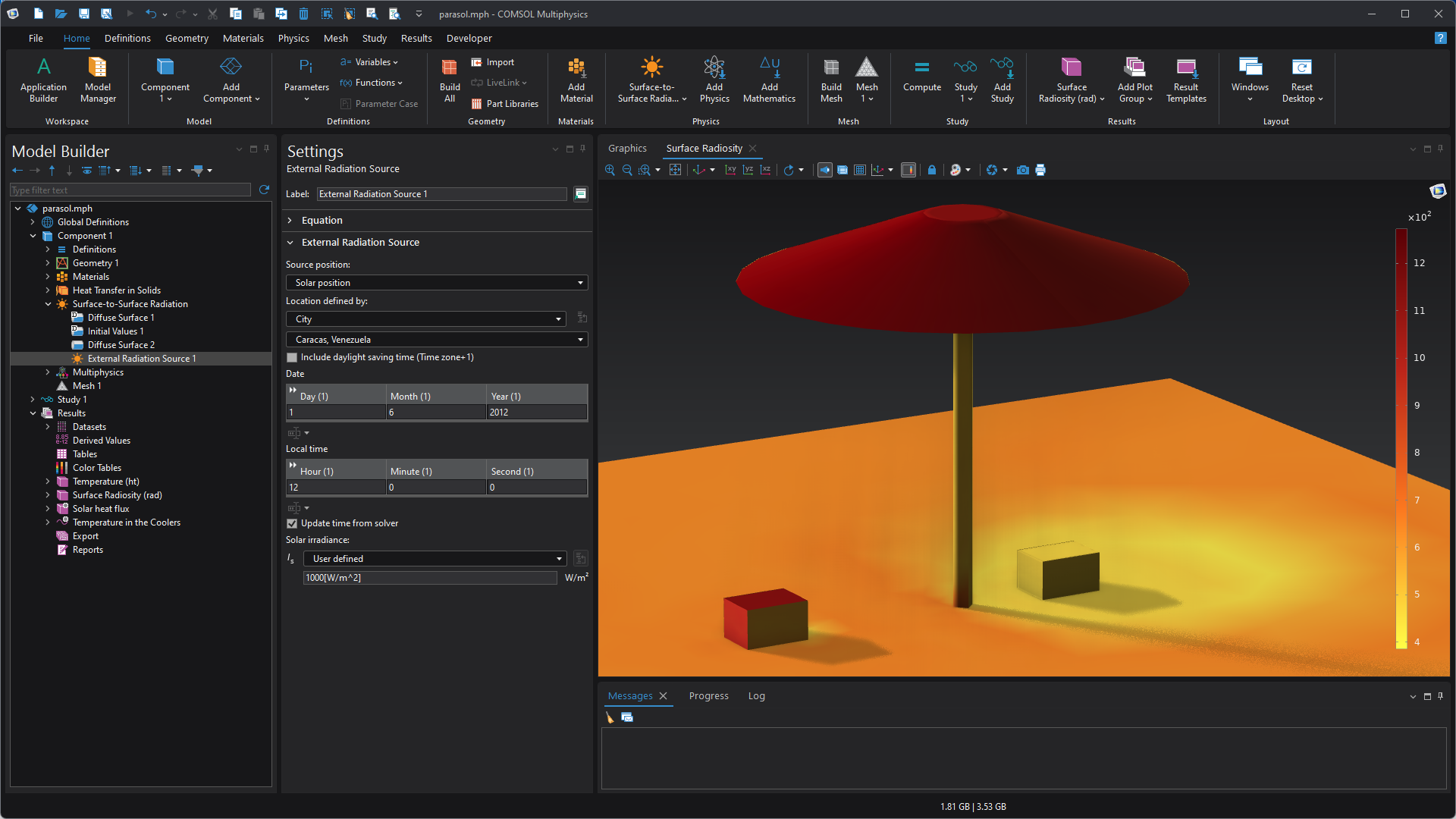
Default mode (left) and dark mode (right).
The Graphics window also offers several additional color themes that can be selected independently of the desktop theme to help distinguish geometry, selections, and other graphical elements.
COMSOL Multiphysics also supports display scaling on all supported operating systems, enabling users to enlarge the elements of the user interface. On Windows®, users can also take advantage of accessibility tools such as Magnifier to enlarge portions of the screen.
 The COMSOL Desktop viewed using Magnifier at 200%.
Also on Windows, COMSOL Multiphysics works with screen readers such as Windows Narrator, which can announce text and information about many controls as the user navigates the interface.
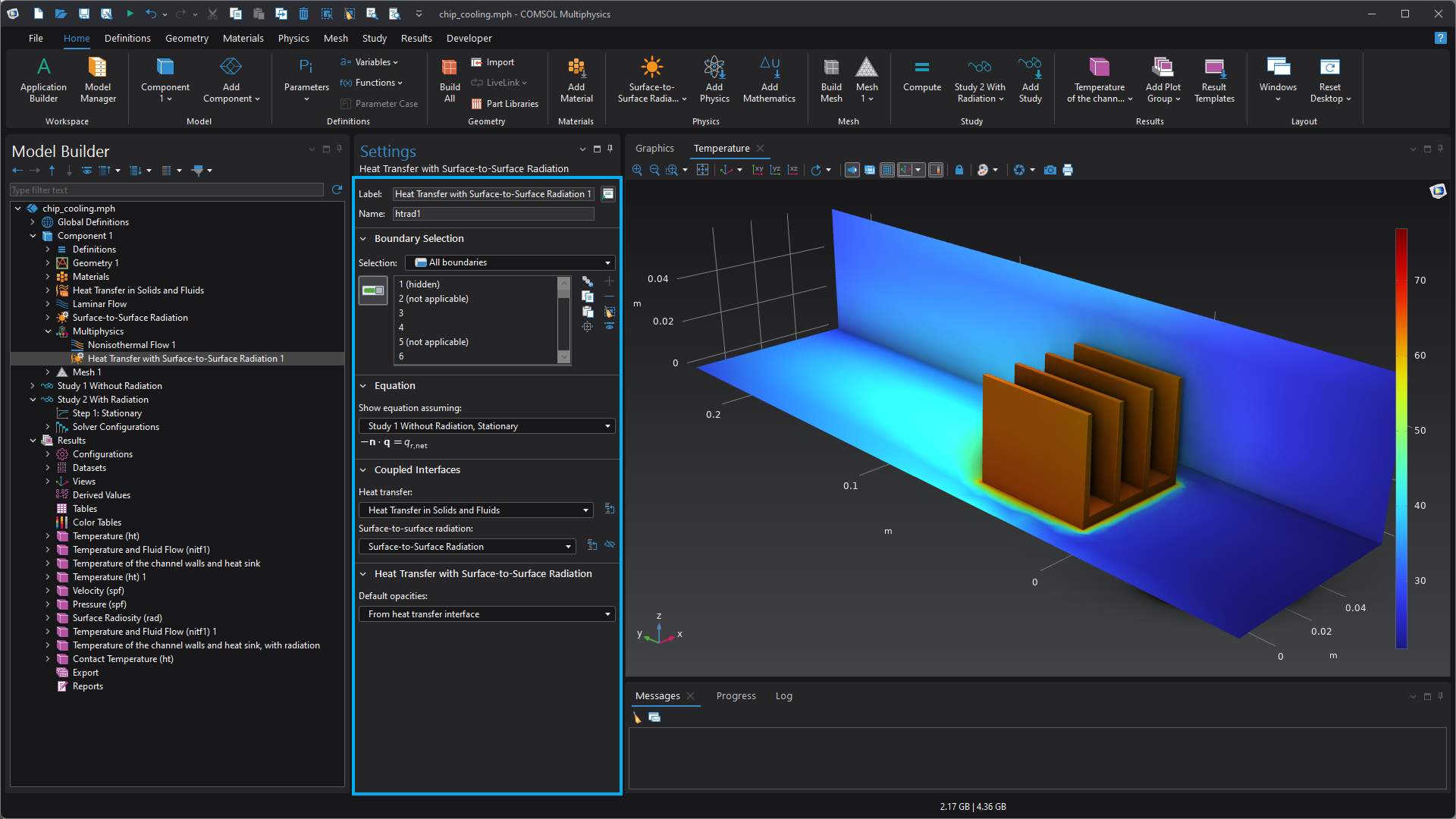 The blue frame indicates the user interface element currently selected by Windows Narrator.
Keyboard Navigation
The COMSOL Desktop provides several ways to navigate the user interface and access commands using the keyboard instead of a mouse. For example, pressing the Alt key displays a KeyTip by each ribbon command that indicates the corresponding key to press to execute the command. The Tab and arrow keys can also be used to navigate between controls and through lists or trees, while Ctrl+Tab enables navigation between windows.
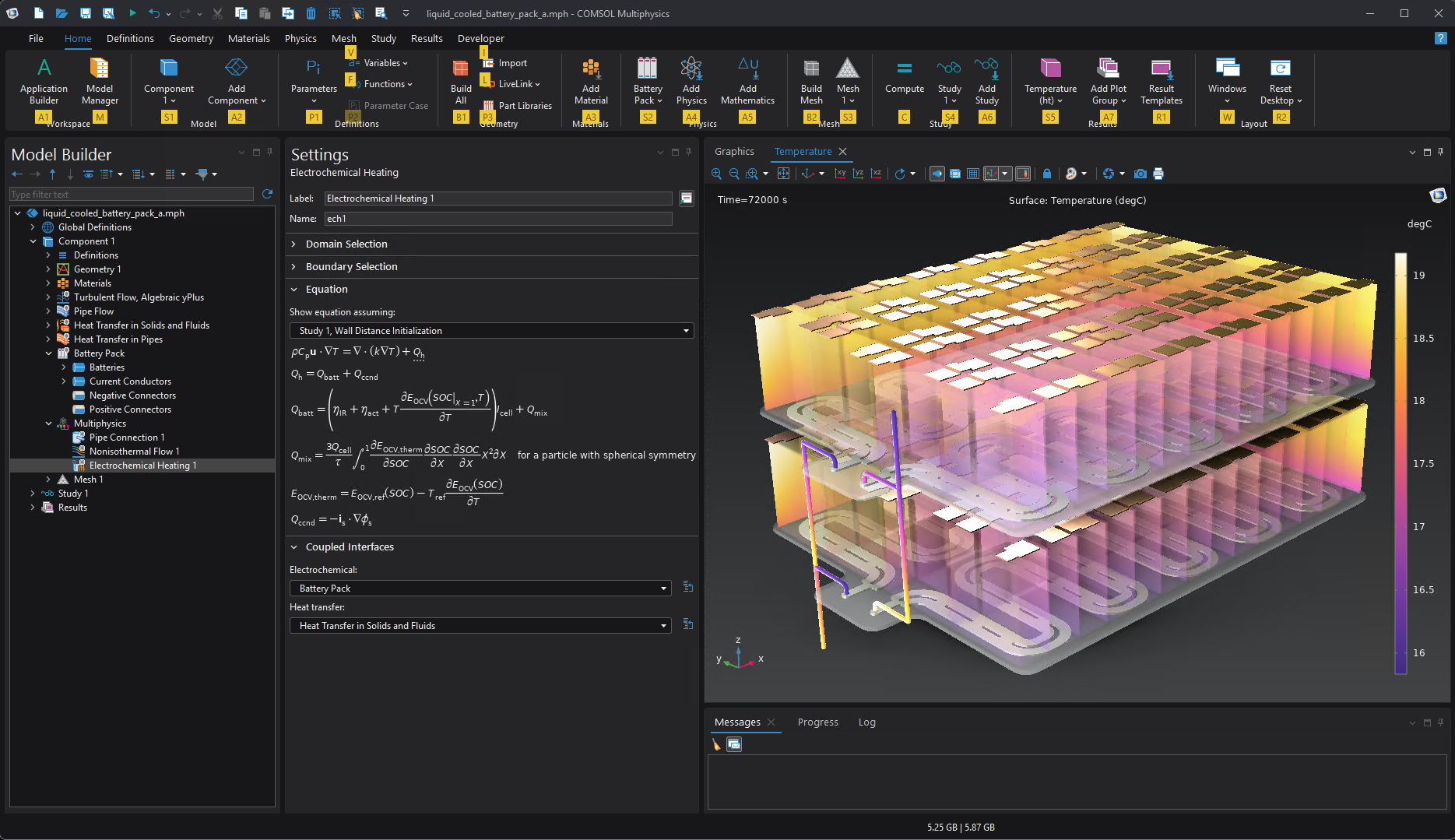 KeyTips shown for the Home ribbon tab, displayed by pressing the Alt key followed by the H key.
Additional options for personalizing the COMSOL Desktop are covered in the Learning Center article Personalize the COMSOL Desktop, which is part of the How to Navigate the COMSOL Multiphysics User Interface course.
The Learning Center also provides information on using keyboard shortcuts, and a complete list of available keyboard shortcuts can be found in the COMSOL documentation.
Syntax Highlighting
Syntax highlighting makes it easier to read and edit complex expressions and functions when, for example, creating parameters and variables. In expression text areas in the Settings window, variables, math functions, units, numbers, and strings are visually distinguished using different font colors and formatting (i.e., italics, bold, etc.).
Matching parentheses are also highlighted when the cursor is placed next to one parenthesis in a pair. This can be especially useful when working with expressions that contain multiple sets of parentheses.
Together, these features can make complex expressions easier to read and navigate.
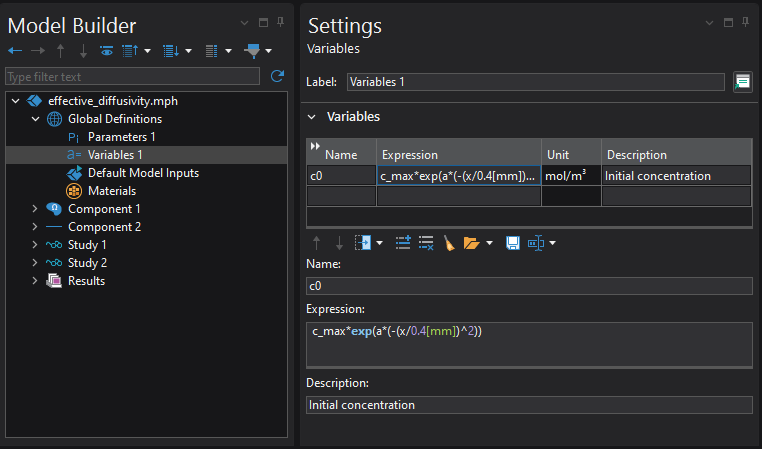 The text field below the Variables table shows an expression with syntax highlighting.
Accessible Visualizations
Choosing an appropriate color table can make simulation results easier to interpret. COMSOL Multiphysics includes perceptually uniform color tables, which are designed so that equal changes in data values correspond to approximately equal perceived differences in color.
As an alternative to the Rainbow color table, which uses a broad range of colors to represent variations in simulation results, the perceptually uniform Cividis color table uses gradual changes in color and lightness and is designed to remain distinguishable for many users with color vision deficiency (CVD).
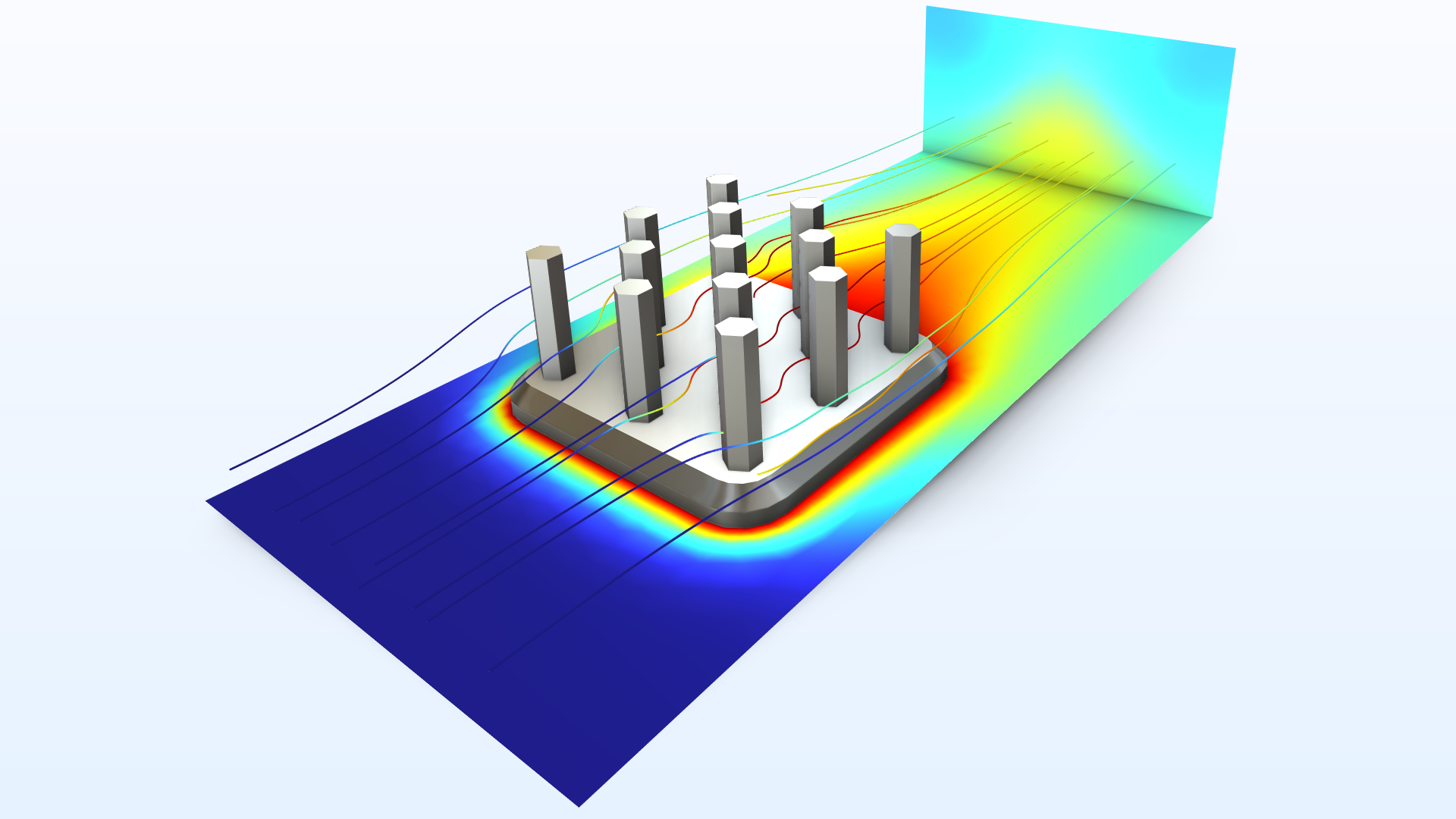
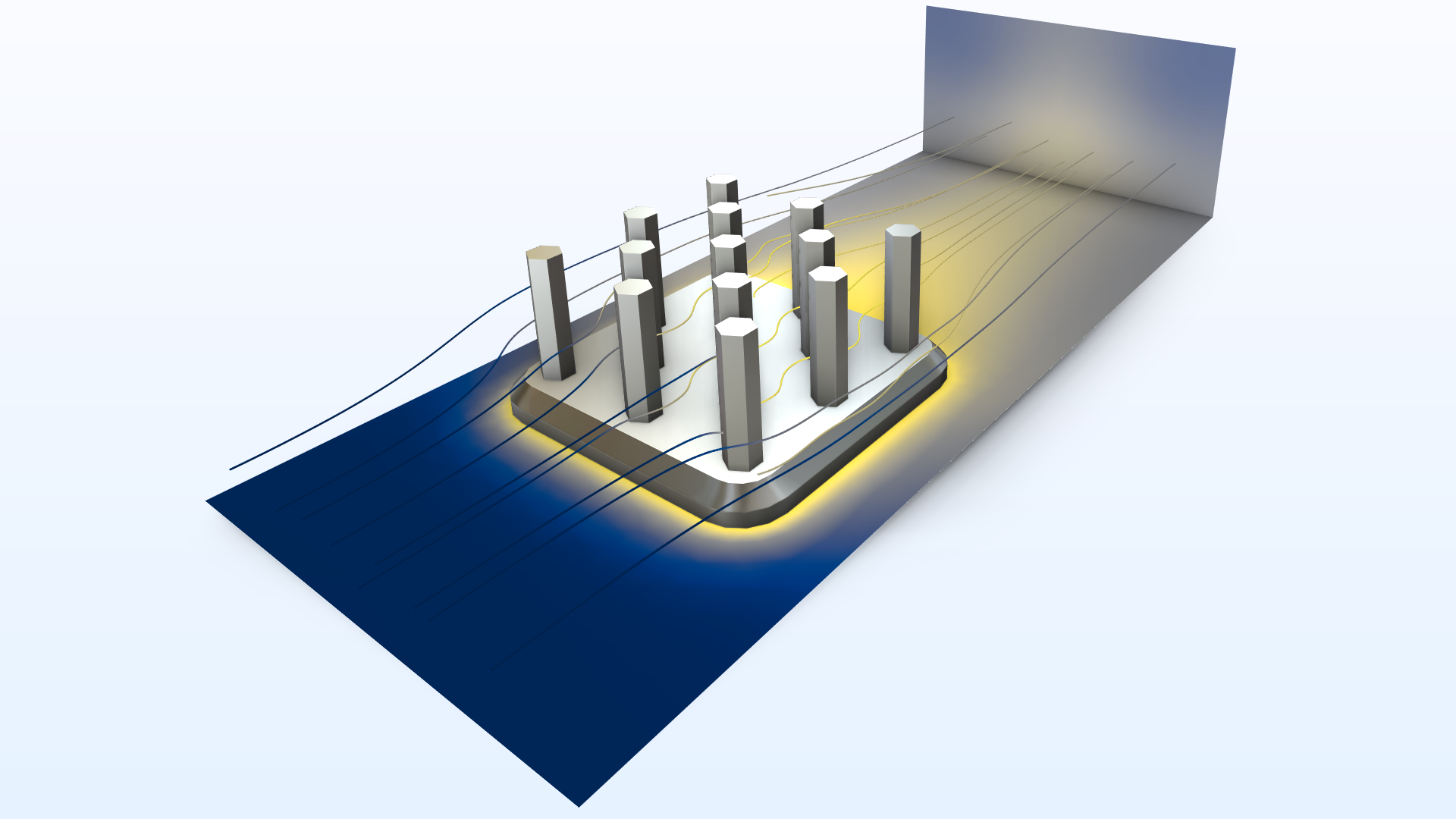
The same simulation results visualized using the Rainbow (left) and Cividis (right) color tables.
Users can also create custom color tables to control how colors are distributed across a visualization. This provides additional flexibility for creating visualizations based on the data being presented and the intended audience.
For more information about accessible color tables, see the blog post Accessible Color Tables to Aid in Accurate Perception of Results.
Alternative Ways to Access Simulation Results
In addition to graphical visualizations, COMSOL Multiphysics provides several ways to explore and analyze simulation results numerically. Results can be evaluated and displayed in tables, and numerical data, including the data used to generate plots, can be exported for further analysis. The Report Generator provides another way to present simulation results, combining text, tables, and images in structured reports.
The comprehensive COMSOL API for use with Java also enables users to interact with models programmatically, including when accessing and processing simulation results.
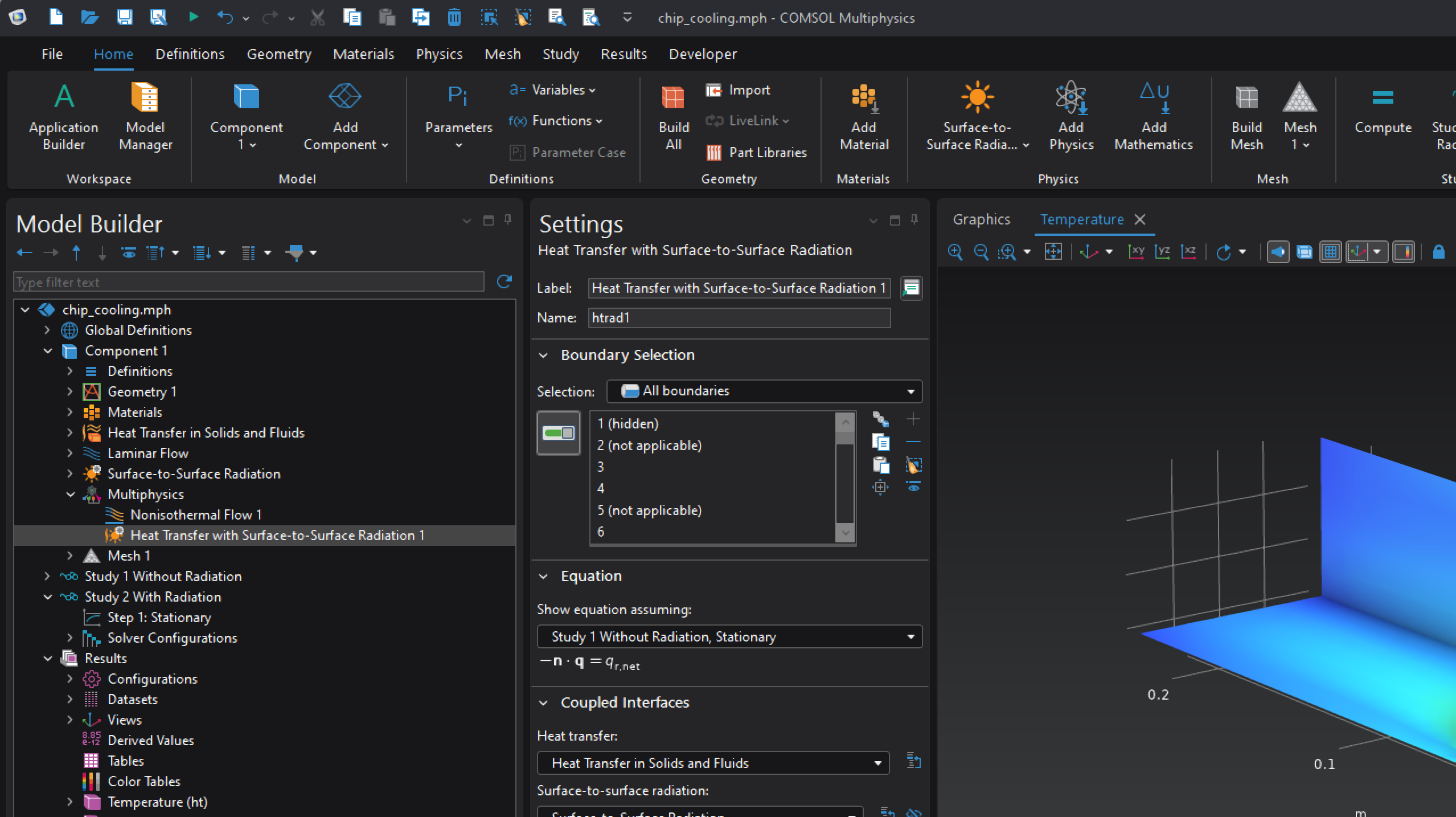
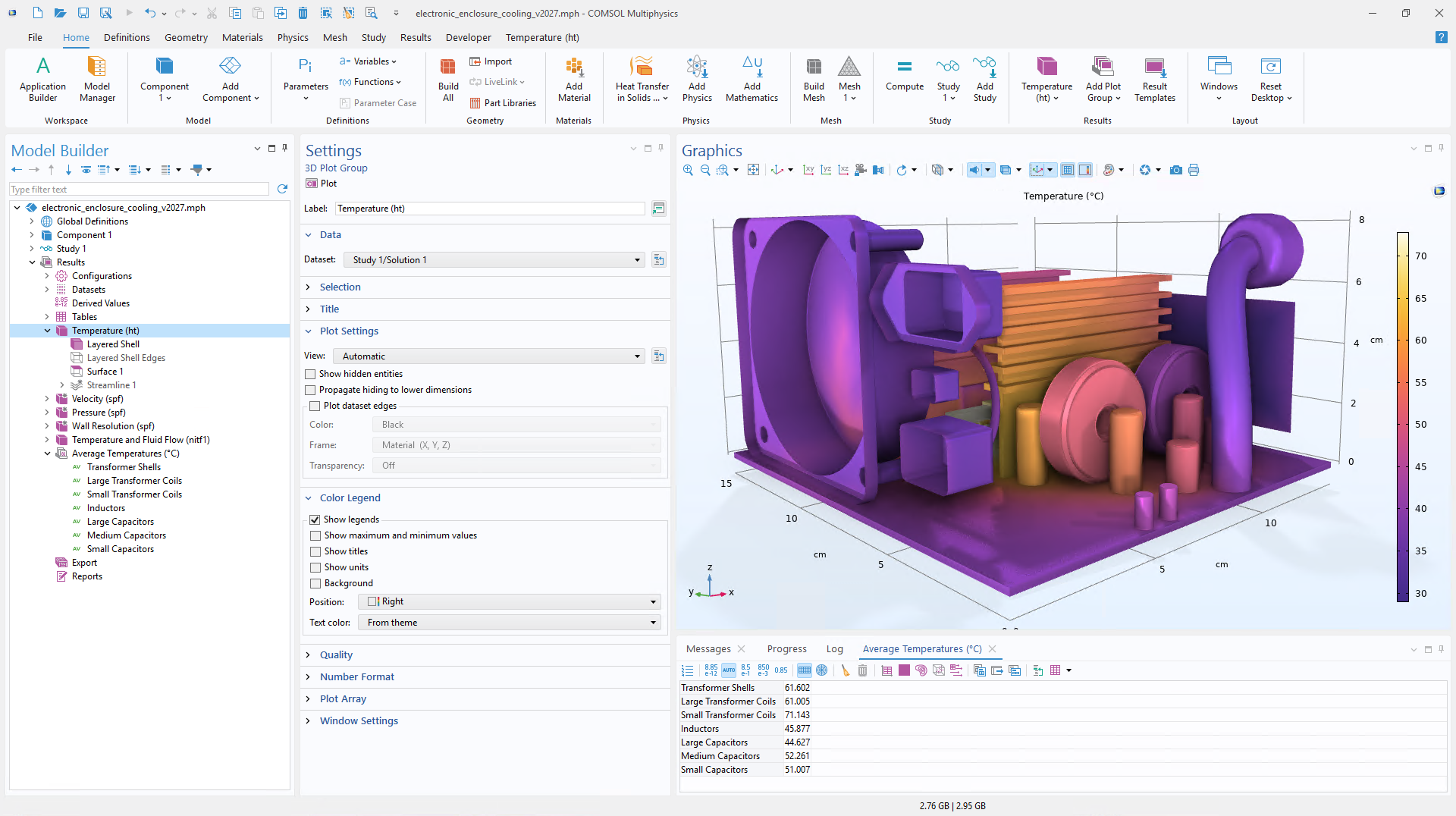 Temperature distribution in an electronic enclosure cooling model, with average temperatures of individual components evaluated and displayed in a table.
Accessibility Resources
For additional information about accessibility options in COMSOL products, see:




Comments (0)