Generative and Agentic
AI Workflows

Assisted Modeling and Programming Within the COMSOL Desktop®

Generative and agentic AI capabilities can support modeling and application development with COMSOL Multiphysics®. A wide range of large language models (LLMs) can be used, including OpenAI GPT models, DeepSeek™, Google Gemini™, Meta Llama®, and other OpenAI API-compatible models.

The Chatbot window provides conversational assistance directly within the COMSOL Desktop®. It can answer modeling questions and generate, explain, or debug COMSOL API methods without requiring users to manually transfer model information between applications.

For more autonomous workflows, AI agents can interact directly with the COMSOL API to inspect models, create or modify model features, run studies, evaluate results, and carry out multistep modeling tasks.

Contact COMSOL
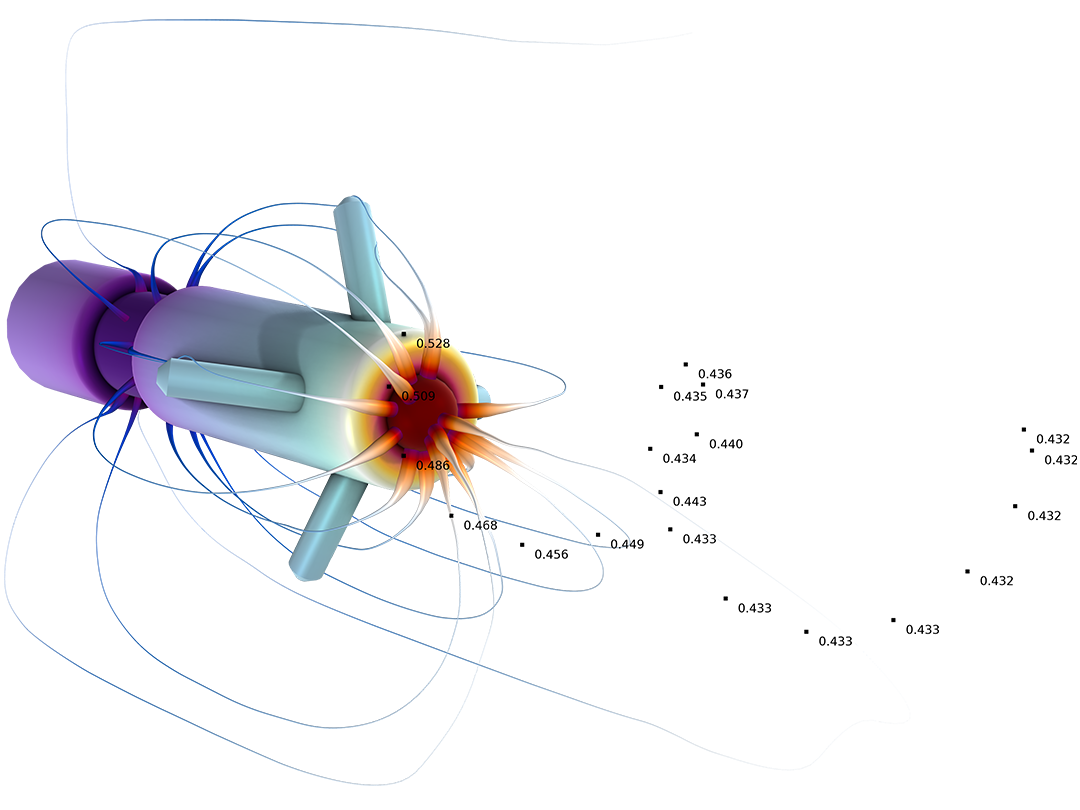
A pacemaker model with annotations in a helix pattern.

Features and Functionality

Support for AI-powered modeling and programming tasks directly inside the COMSOL Multiphysics® environment.

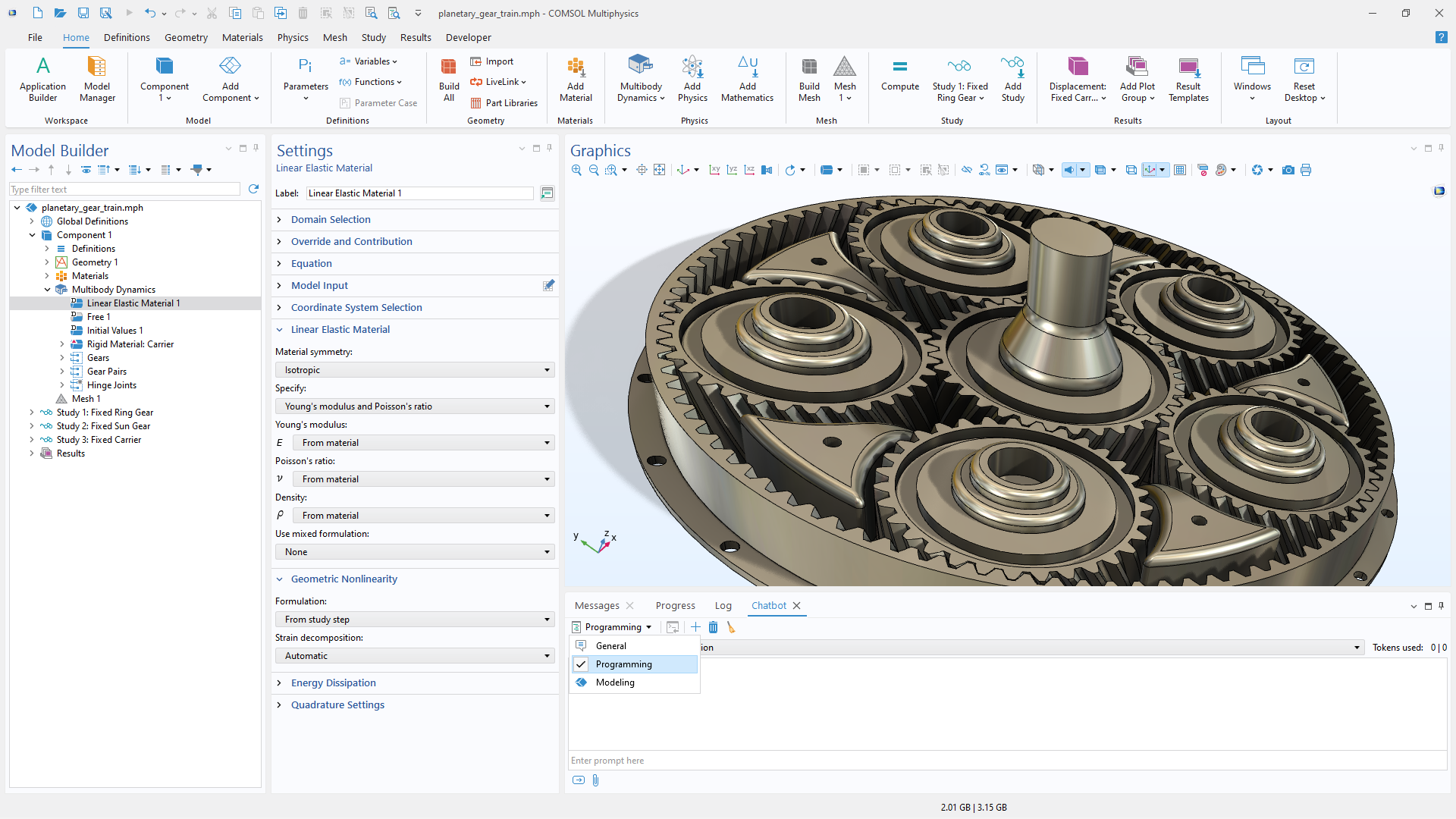
A close-up view of the Chatbot window and a gear train model in the Graphics window.

The Chatbot Window

The Chatbot window is a built-in feature in the COMSOL Multiphysics® environment that assists with modeling and programming tasks directly within the COMSOL Desktop®. It connects to a wide range of LLMs to answer modeling questions and generate or debug COMSOL API methods. Because the chatbot is embedded in the COMSOL interface, interactions take place without the need to copy information to external tools.

An entire model, or selected parts of one, can be attached to a chatbot prompt. This allows the chatbot to analyze expressions, variables, and other model information to provide context-aware guidance. The Chatbot window requires an API key to connect to a supported LLM.
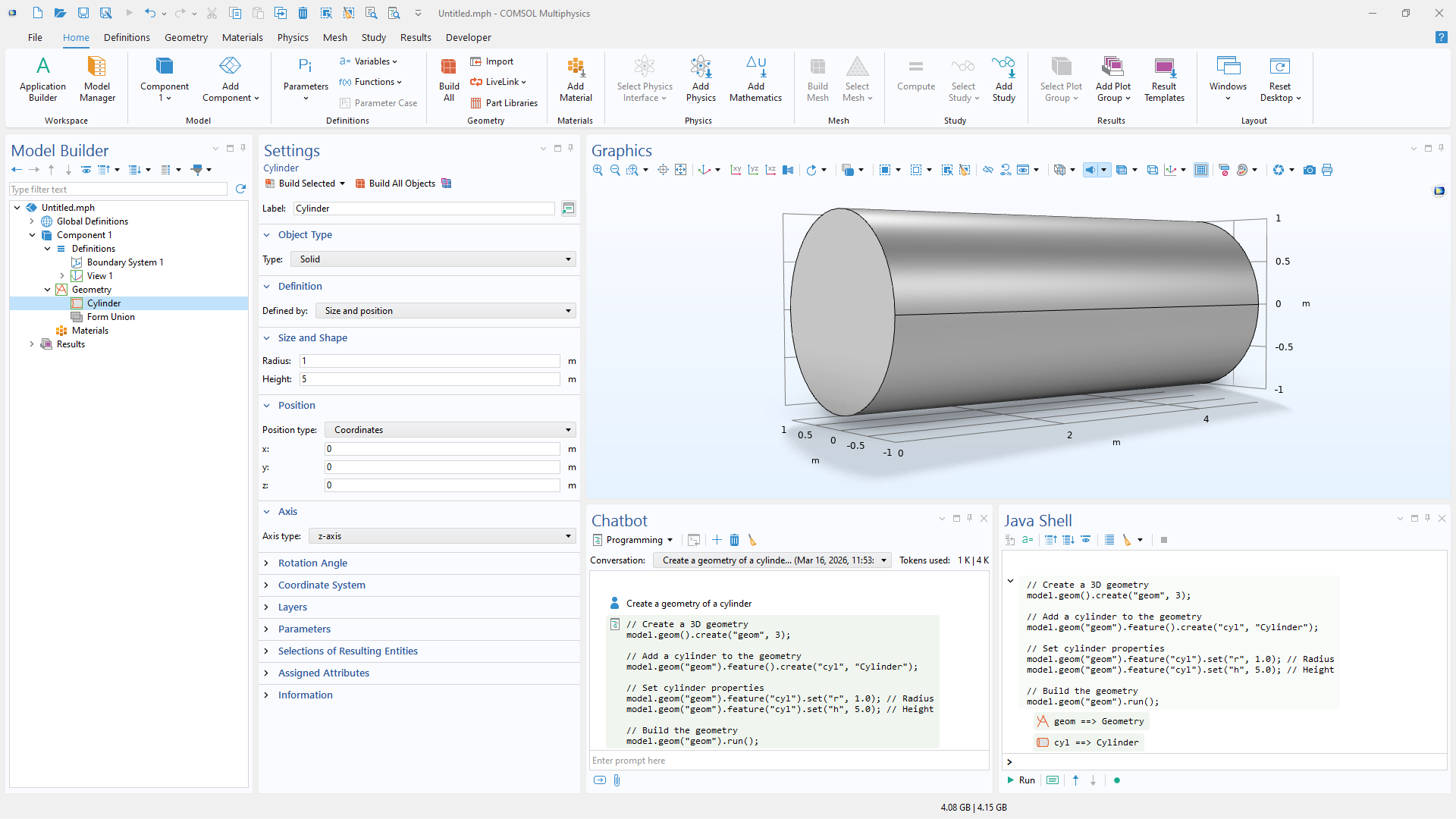
A close-up view of the Chatbot window and a cylinder model in the Graphics window.

Creating Geometry Objects

Both the Chatbot window and AI agents can assist with creating geometries by generating COMSOL API code from prompts. For example, starting from a blank model, a prompt can generate the Java code required to create a geometry such as a cylinder. The generated code can then be sent to the Java Shell window for interactive execution, with the resulting geometry appearing in the Model Builder and Graphics window.

By using an AI agent, more complex, multistep geometry-building tasks can be carried out through direct interaction with the COMSOL API. The agent can create and combine geometric objects, assign dimensions and parameters, inspect the resulting model structure, and iteratively refine the geometry based on additional prompts. This capability enables users to progress from a high-level description to a completed parameterized geometry while reviewing the agent’s operations and results in the COMSOL Desktop®.

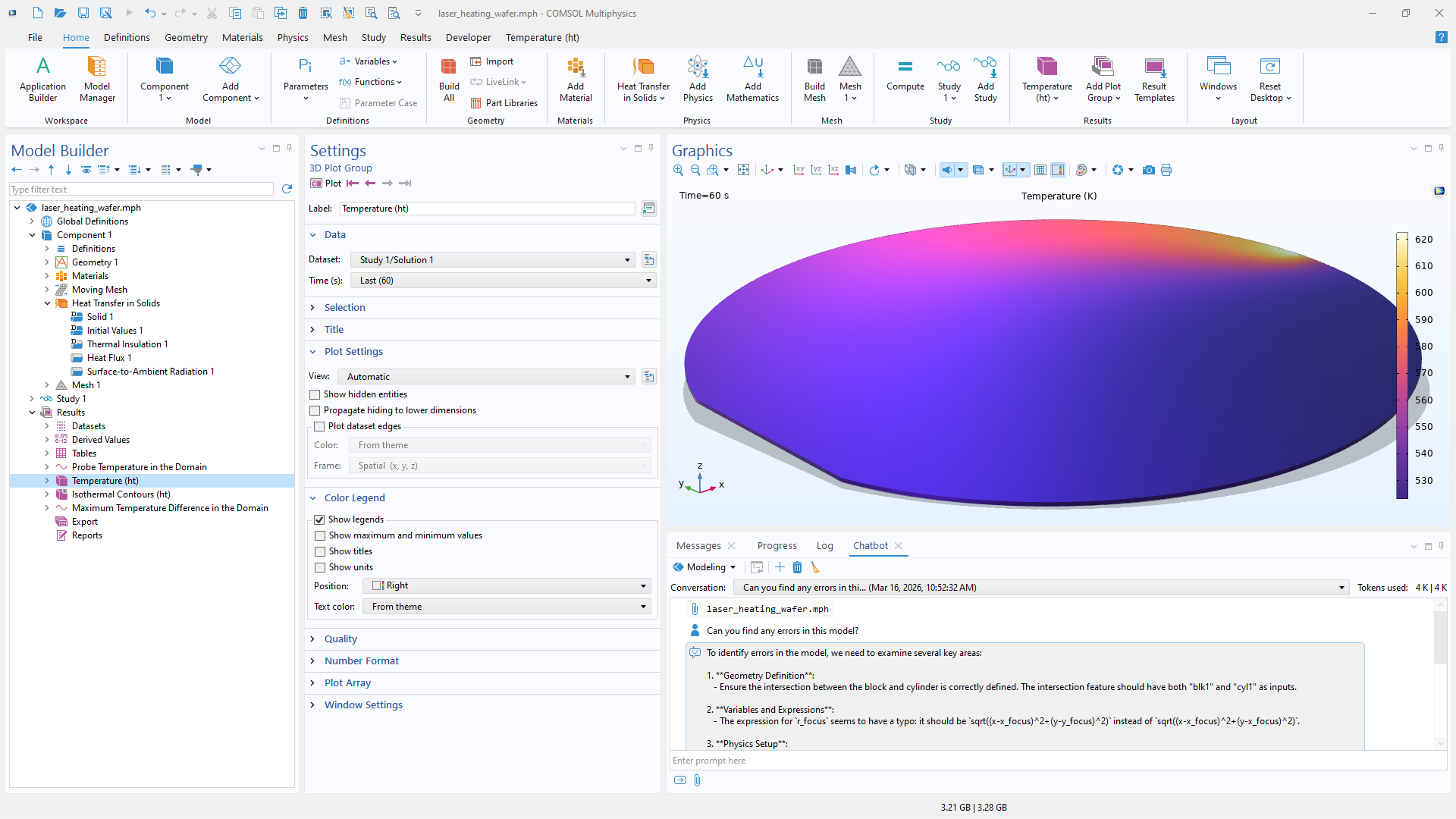
A close-up view of the Chatbot window with the prompt "Can you find any errors in this model?" and the response.

Finding Modeling Mistakes

The Chatbot window can help identify mistakes in a modeling setup. Although the chatbot may not understand every aspect of a model or simulation, it can assist in detecting common issues in expressions used in the Model Builder.

For example, it may identify unit mismatches, errors in variable names, incorrect variable usage, inconsistent definitions, or logical flaws in expressions. This assistance can streamline troubleshooting and improve model consistency during the setup process.

By using an AI agent, more complex model problems can be investigated. The agent can inspect parameters, variables, selections, physics settings, studies, and solver messages; compare related definitions; and perform diagnostic checks through the COMSOL API. It can then suggest corrections or, when instructed, modify the model and reevaluate the results. Any proposed changes should be reviewed to ensure that they remain consistent with the intended physics and modeling assumptions.

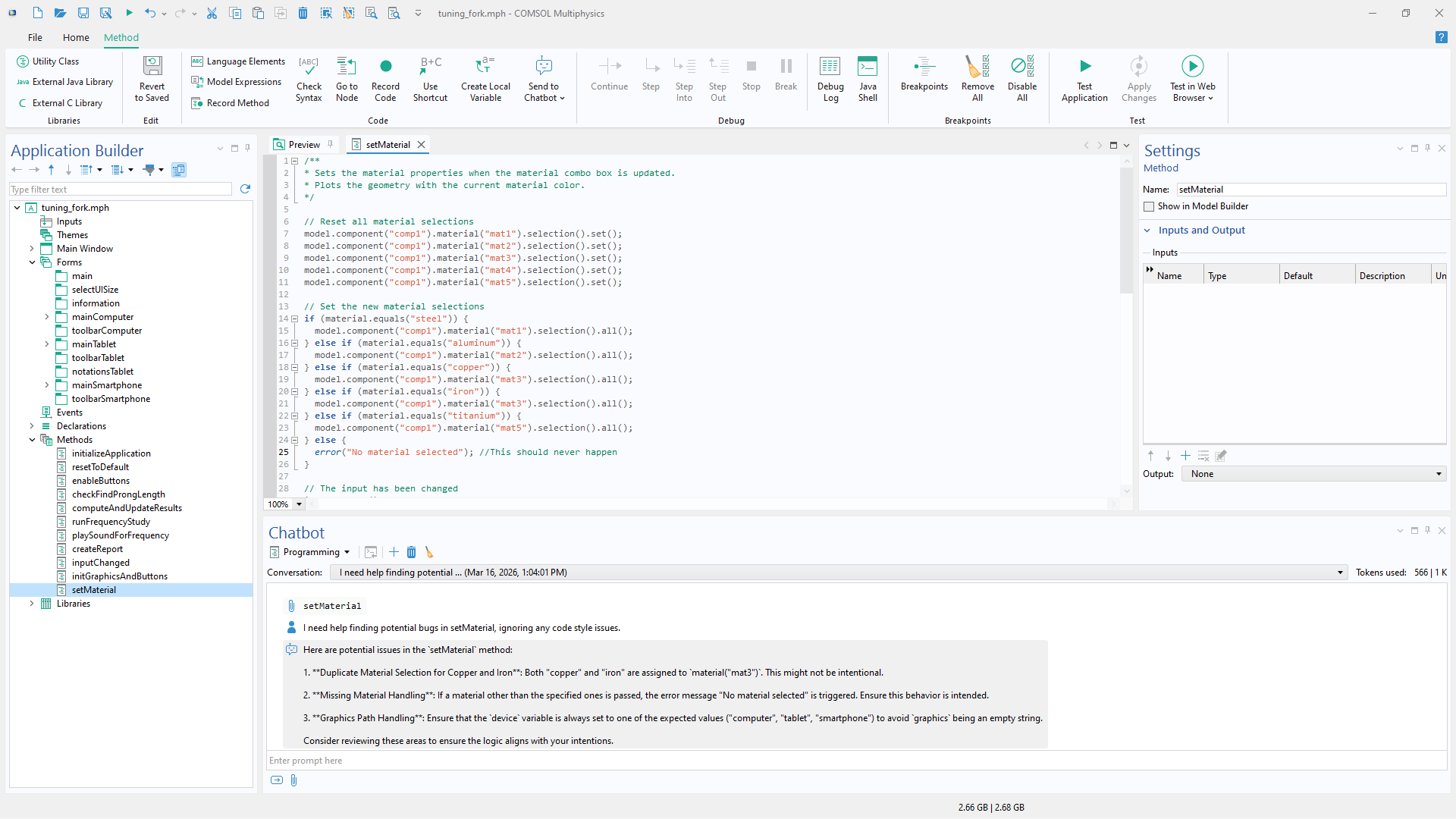
A close-up view of the Chatbot window and setMaterial window in the Application Builder.

Debugging API Code

To assist with debugging COMSOL API code, the Chatbot window can be used to identify issues that go beyond simple syntax errors. Model methods can be attached directly to a prompt, allowing the chatbot to review the implementation and highlight potential logic errors, detect inconsistencies, and suggest improvements.

Predefined prompts for discussing code, finding bugs, or suggesting improvements make it easy to start targeted reviews of specific methods. This helps streamline troubleshooting and refine methods when developing automated workflows or simulation apps.

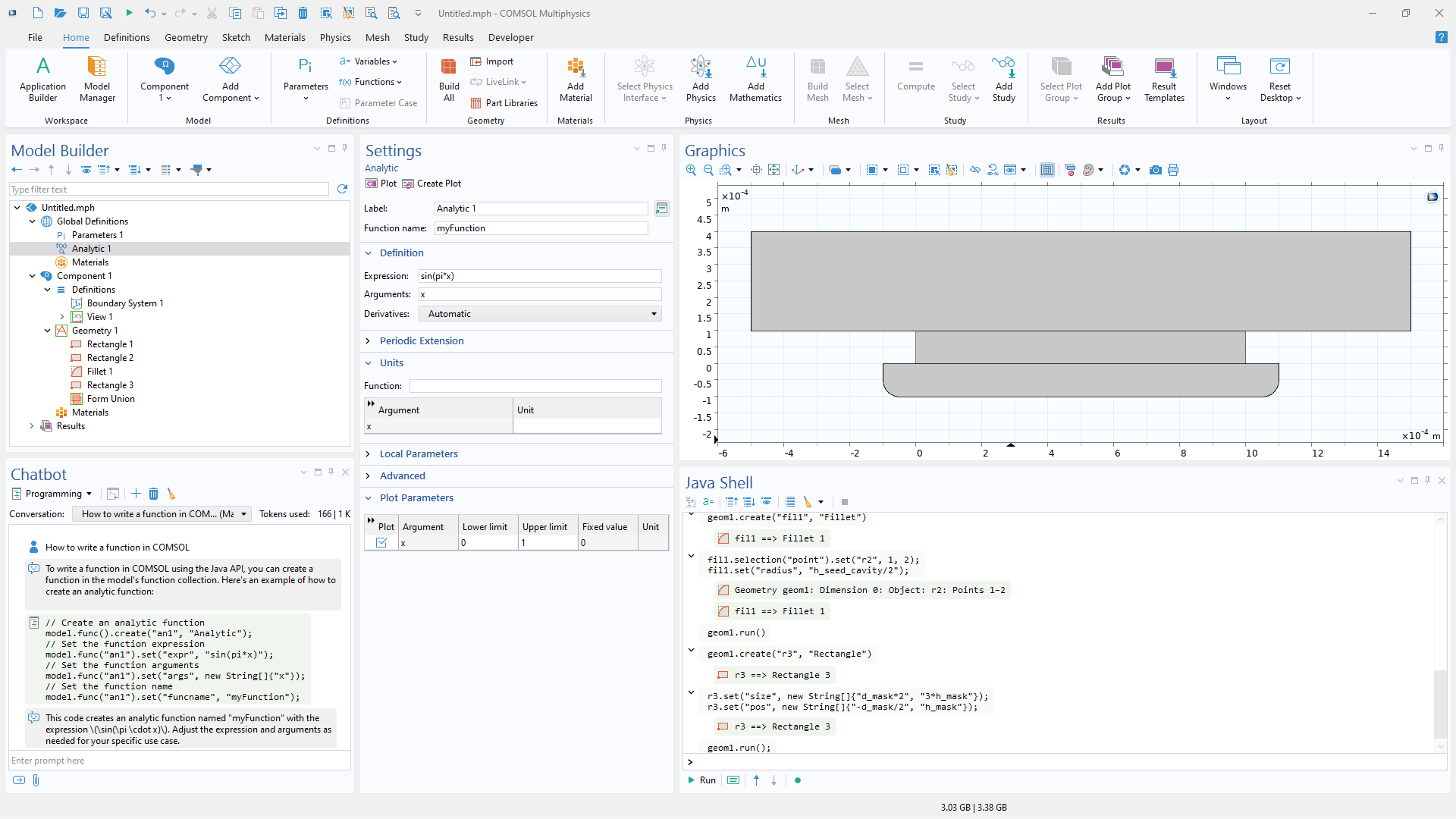
A close-up view of the Chatbot window and the Java Shell window.

Interactive Java Environment

The Java Shell window is an interactive environment that provides a command prompt for running Java code, including AI-generated Java code. When used together with the Chatbot window, it supports a workflow for developing and refining models using the COMSOL API. The chatbot can generate Java code, explain API usage, and suggest modifications, and the code can then be executed directly in the Java Shell to test changes immediately. This process enables quick iteration without first creating a model method.

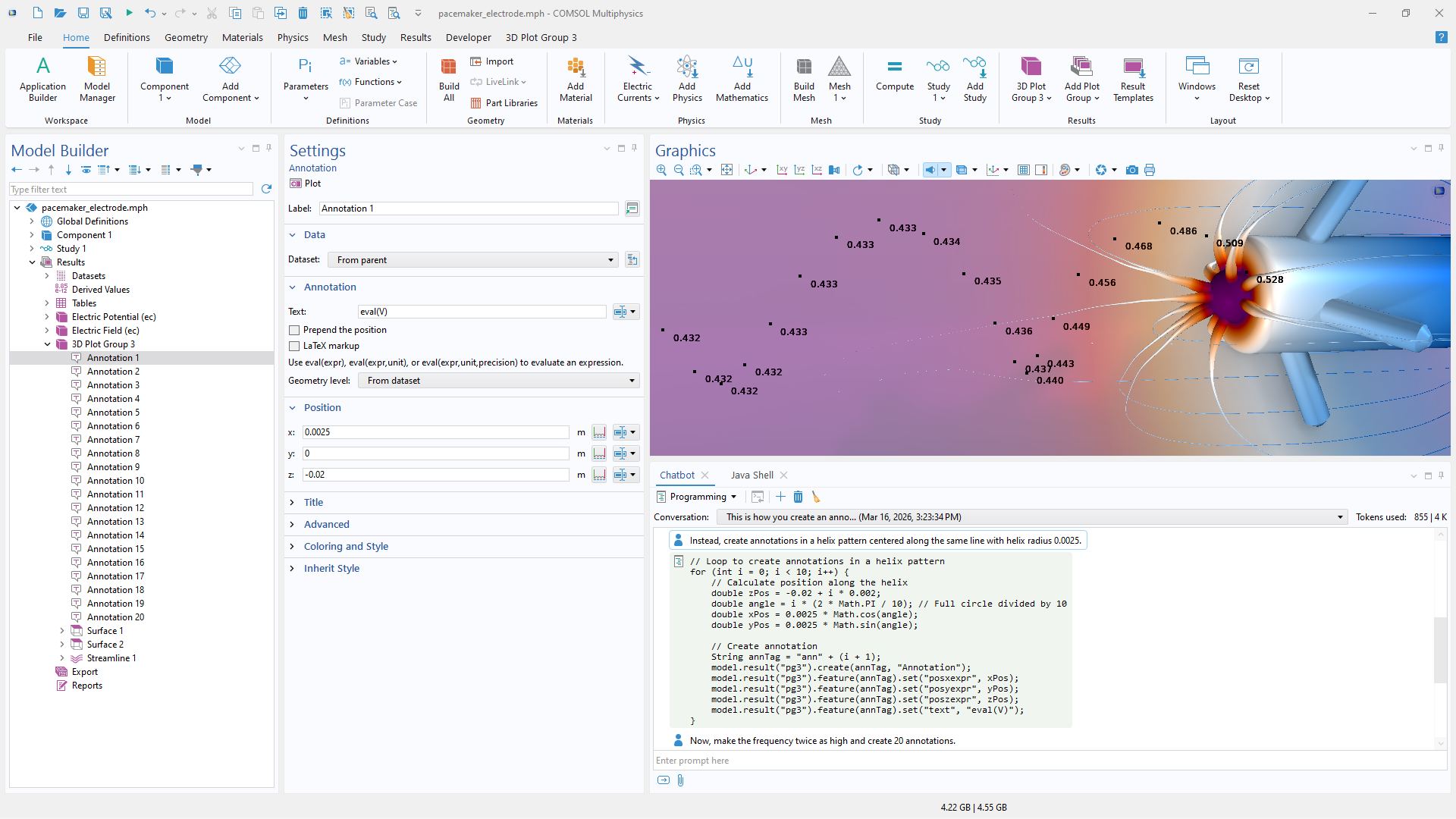
A close-up view of the Chatbot window and a pacemaker model in the Graphics window.

Automating Repetitive Tasks

The Chatbot window can help automate repetitive modeling tasks by generating COMSOL API for use with Java code based on recorded modeling actions. When a task relies on API details that may not be readily understood by the AI model, the code-recording functionality in the Application Builder can capture representative steps performed manually in the Model Builder.

The recorded code can then be included in a prompt as a working example from which the chatbot or an AI agent can generate generalized or repeated operations. This approach can be used to automate tasks such as creating annotations in a specific pattern, duplicating model features, assigning settings, and producing custom layouts in visualizations. It is particularly useful when the same sequence of operations must be applied to multiple objects, selections, or parameter values.

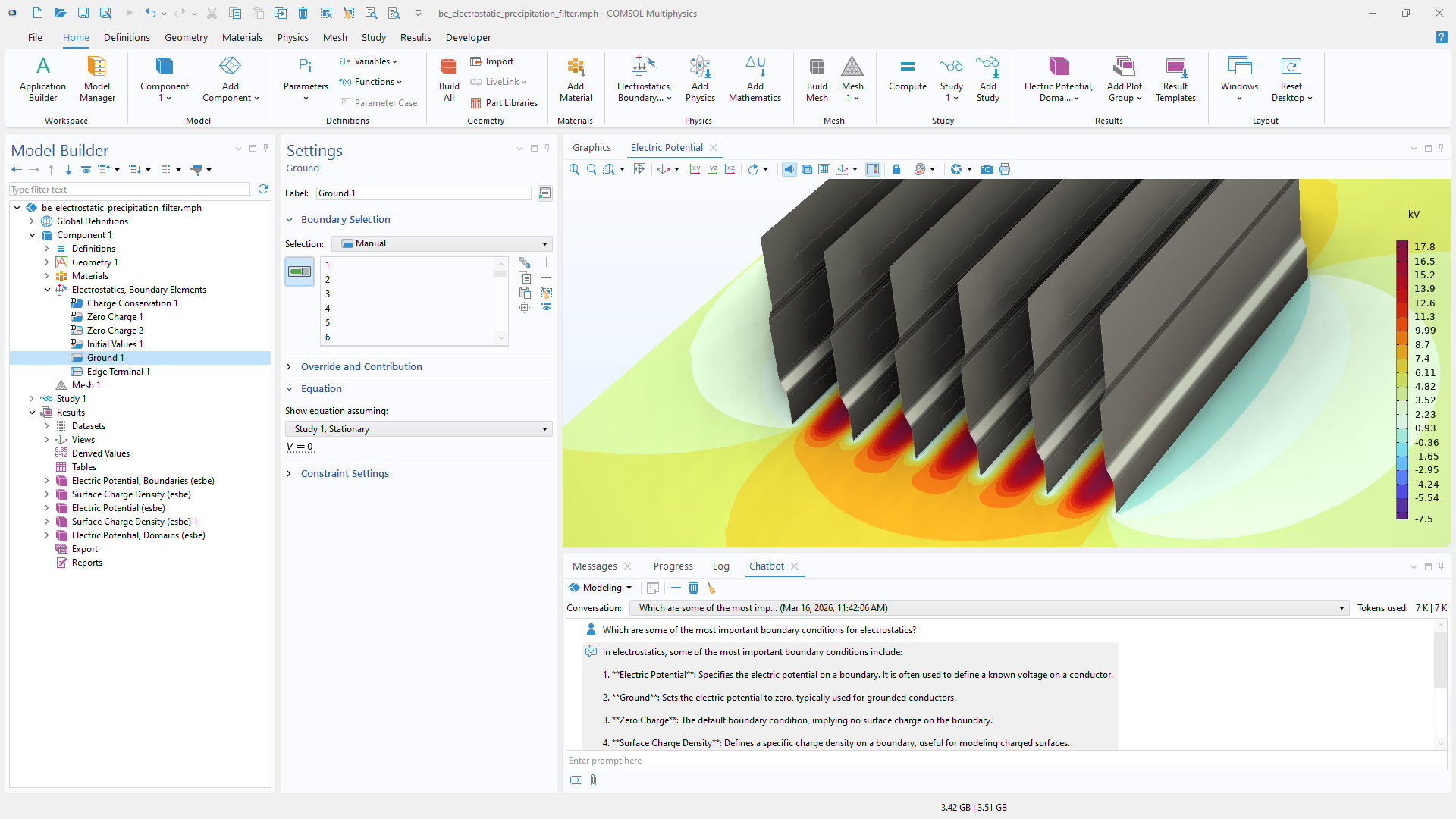
A close-up view of the Chatbot window and an electrostatic precipitation model in the Graphics window.

Getting Physics and Modeling Guidance

The Chatbot window can also be used to ask physics-related modeling questions within the COMSOL environment. By selecting the Modeling subject, domain-specific queries can be entered about, for example, physics, boundary conditions, and terminology. The chatbot consults the COMSOL Multiphysics documentation when generating responses, helping provide software-relevant guidance.

This Tool calling functionality is enabled automatically for OpenAI GPT models and is also available for other LLMs that support it. While its responses are useful for general guidance, they should be verified for advanced modeling topics.

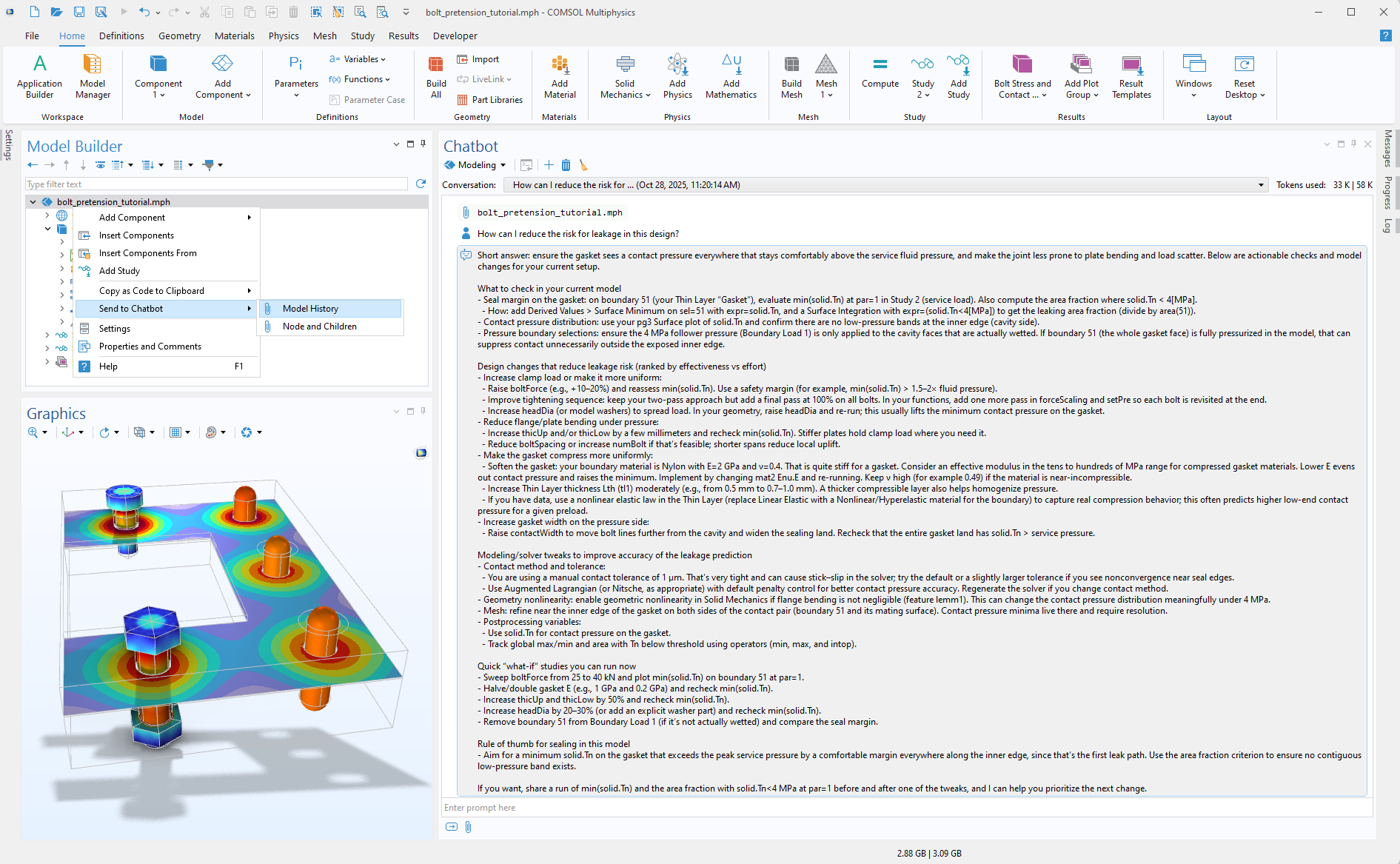
A close-up view of the Model Builder with the Model History node selected in a submenu and the Chatbot window.

Querying and Inspecting Models

Model information can be attached to prompts in the Chatbot window to enable more detailed assistance. Nodes in the Model Builder tree can be submitted directly by right-clicking a node and selecting Send to Chatbot. Users can send either the selected node only or the node together with all of its child nodes.

Even more context can be provided by sending the entire model and supporting UI screenshots, which can be pasted directly from the clipboard. The AI system analyzes the supplied model information together with COMSOL Multiphysics documentation to generate responses that reference relevant geometric entities, variables, settings, and model features.

For agentic workflows, an AI agent can retrieve model information directly through the COMSOL API. Rather than relying only on the model information included in an individual prompt, the agent can inspect the model tree, query feature settings and selections, examine parameters and variables, and evaluate results as needed. It can use this information throughout a multistep task, gathering additional context, performing checks, and refining its actions in response to the current state of the model. This agentic capability enables more comprehensive model analysis while reducing the amount of information that must be manually assembled and submitted with each prompt.

Gemini is a trademark of Google LLC. Llama is a trademark or registered trademark of Meta Platforms, Inc and its affiliate companies. Oracle and Java are registered trademarks of Oracle and/or its affiliates. Microsoft and Windows are trademarks of the Microsoft group of companies.

Every business and every simulation need is different.

In order to fully evaluate whether or not the COMSOL Multiphysics® software will meet your requirements, you need to contact us. By talking to one of our sales representatives, you will get personalized recommendations and fully documented examples to help you get the most out of your evaluation and guide you to choose the best license option to suit your needs.

Just click on the "Contact COMSOL" button, fill in your contact details and any specific comments or questions, and submit. You will receive a response from a sales representative within one business day.

Next Step

Request a Software Demonstration